Upload your PNG file
Drag and drop your PNG file onto the converter or click to browse.
Convert PNG images to PDF documents. Combine multiple files into one PDF. Free, no registration.
PNG files are ideal for individual images, but when you need to combine multiple screenshots, scans, or graphics into a single shareable document, PDF is the answer. Converting PNG to PDF creates a multi-page document that preserves full image quality and can be viewed on any device.
PNG to PDF conversion is essential for creating documentation from screenshots, combining scanned pages into one file, preparing graphics portfolios, and sending multiple images as a single attachment. PDF is accepted by every email client, print shop, and government portal.
This converter processes files locally in your browser — nothing is sent to any server. No registration, no limits, no watermarks.
| Feature | PNG | |
|---|---|---|
| Lossy compression | — | — |
| Lossless compression | ✓ | ✓ |
| Transparency (alpha channel) | ✓ | ✓ |
| Animation support | — | — |
| Web browser support | All browsers | Built-in PDF viewer |
| Compact file size | — | — |
| Metadata (EXIF) | — | — |
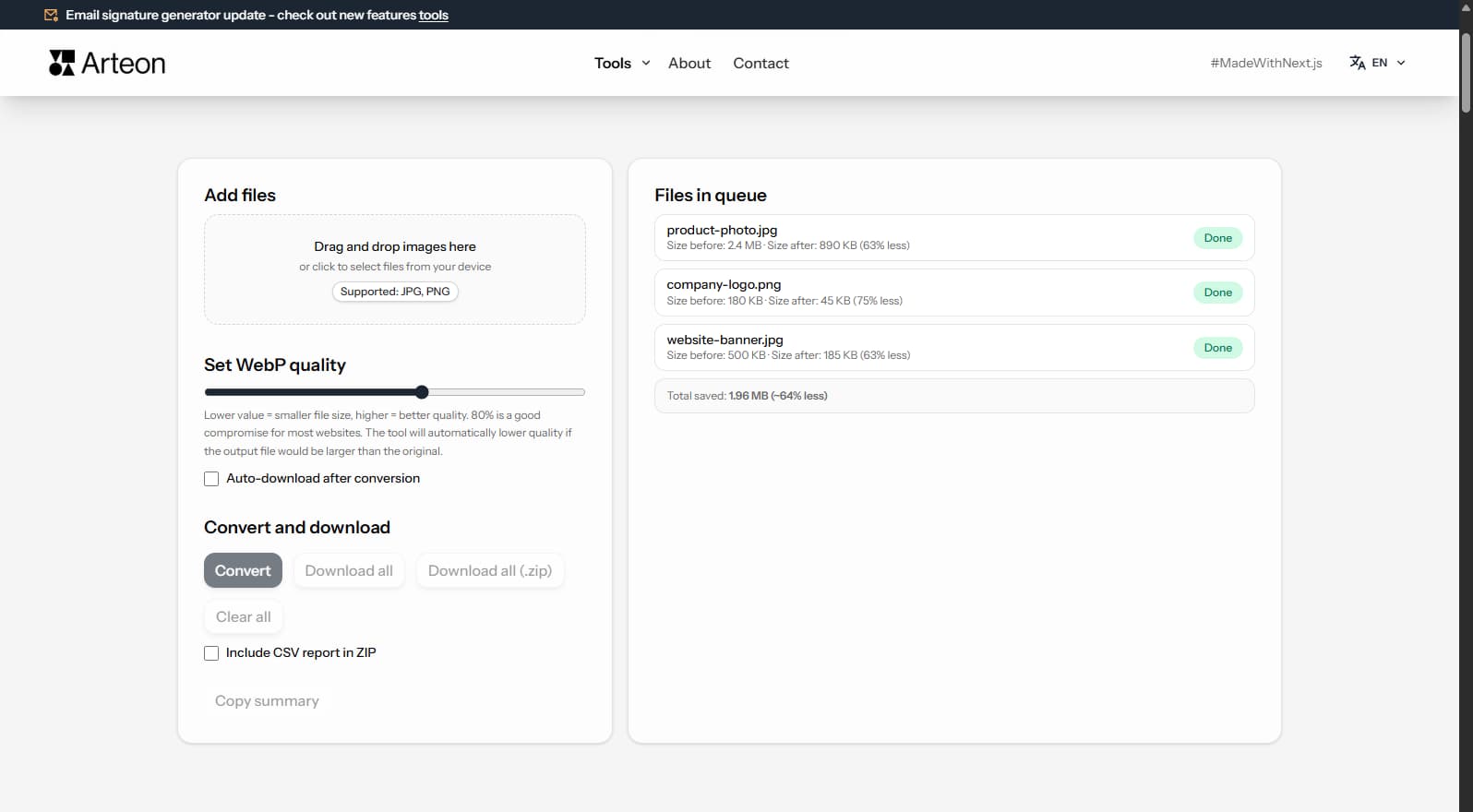
The quality slider lets you set a value from 60% to 95%. Higher values mean better image quality but larger file sizes.
At 85% quality, the visual difference between the original PNG and the resulting PDF is virtually imperceptible to the naked eye, while the file is significantly smaller.
A few tips to help you avoid common issues during conversion:
Savings depend on the source file type and its original compression. Below are example results:
Camera photo
1.2 MB → 280 KB
Product image
800 KB → 210 KB
Screenshot / banner
150 KB → 45 KB
Actual savings may vary depending on image content and quality settings. The converter shows the exact size before and after conversion for each file.
PNG to PDF conversion creates document files for sharing and printing. When PDFs are downloaded from websites, file size directly affects the user experience — large PDFs cause slow downloads and increase bounce rates.
The converter packages PNG images into a compact PDF. Since PNG is lossless, the internal image quality is preserved. A typical multi-page PDF from 10 PNG screenshots will be approximately 10–20 MB.
For web display, keep images as PNG or convert to WebP for optimal performance. Use PDF only when you need a printable, shareable multi-page document.
Yes, this converter is completely free with no limits. No registration, no watermarks.
No. All processing happens locally in your browser. Your files never leave your device.
Yes, the converter supports batch conversion. Add multiple files and convert them all simultaneously.
Yes, the converter works on any device with a modern web browser, including smartphones and tablets.
Yes. All conversion happens locally in your browser using the Canvas API. Files are never sent to any external server. When you close the page, data is automatically cleared.
Yes. PNG files are added to the PDF in the order you upload them. You can rearrange the order before conversion by dragging files in the list.
The PDF format is widely supported by modern browsers: Chrome, Firefox, Safari, Edge, and Opera.
Have an idea, found a bug, or want to suggest a feature? Drop us a message – we respond within 24 hours.

Resize, crop and convert your image. Ready-made formats for social media, circular avatars, export to JPG/PNG/WebP.

Check title and description length in pixels. Live Google preview and optimization tips.
Convert PNG files to JPG in your browser. No file limits, no signup, no server uploads.

Create a complete favicon.ico set for your website from one image. All required sizes, no login.

Generate 9 palettes from one color: monochromatic, complementary, triadic and more. HEX codes.
Convert WebP files to universally compatible JPG. Works in every app and platform.

Check text and background contrast per WCAG 2.1 AA and AAA. Automatic color correction.

Create a QR code for a website, vCard business card or print. Export PNG and SVG, no registration.

Count words, characters, sentences and reading time. Check readability with the Flesch-Kincaid score.