Upload your PDF file
Drag and drop your PDF file onto the converter or click to browse.
Convert PDF pages to JPG images. High quality, no file limits. Free, no registration.
PDF is the standard for documents, but many platforms, social media, and messaging apps only accept image formats. Converting PDF pages to JPG creates individual images that can be shared on Instagram, WhatsApp, Slack, uploaded to e-commerce listings, or embedded in presentations.
Each PDF page becomes a separate JPG file. The output resolution depends on the PDF page dimensions and rendering quality settings. JPG uses lossy compression, producing small files ideal for sharing. For documents with text and sharp edges, consider converting to PNG instead.
This converter processes files locally in your browser — nothing is sent to any server. No registration, no limits, no watermarks.
| Feature | JPG | |
|---|---|---|
| Lossy compression | — | ✓ |
| Lossless compression | ✓ | — |
| Transparency (alpha channel) | ✓ | — |
| Animation support | — | — |
| Web browser support | Built-in PDF viewer | All browsers |
| Compact file size | — | ✓ |
| Metadata (EXIF) | — | ✓ |
The quality slider lets you set a value from 60% to 95%. Higher values mean better image quality but larger file sizes.
At 85% quality, the visual difference between the original PDF and the resulting JPG is virtually imperceptible to the naked eye, while the file is significantly smaller.
Core Web Vitals is a set of performance metrics Google uses when evaluating websites. One of them - LCP (Largest Contentful Paint) - measures the time it takes for the largest visible element to appear on screen. On many pages, that element is an image.
Converting PDF images to JPG reduces graphic file sizes, which directly shortens resource download time and improves the LCP score. Smaller files mean faster page loading - especially important on mobile devices with slower connections. Additional techniques like loading="lazy" and fetchpriority="high" speed up rendering.
Tools like PageSpeed Insights and Lighthouse identify specific files worth optimizing.
A few tips to help you avoid common issues during conversion:
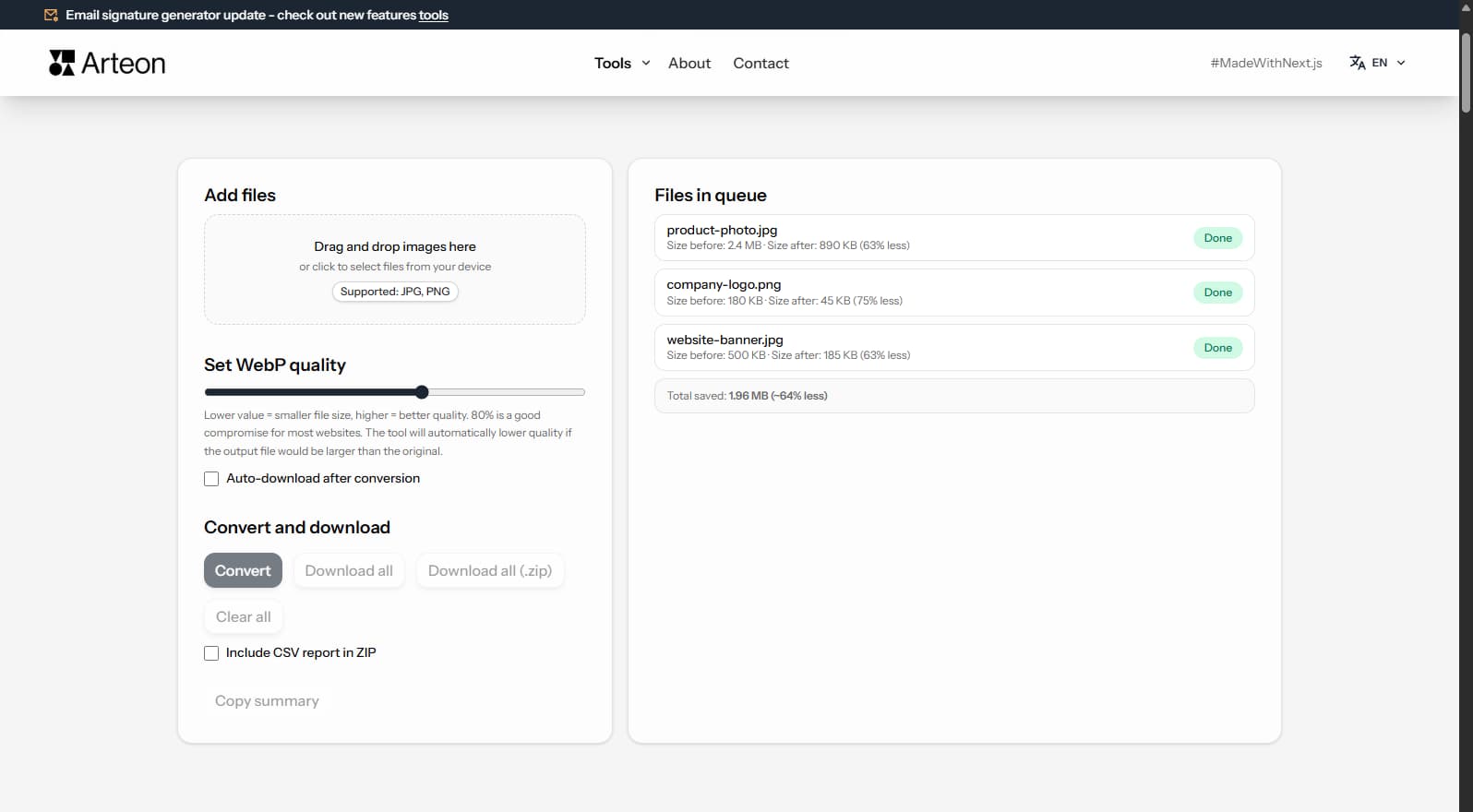
Savings depend on the source file type and its original compression. Below are example results:
Camera photo
2.4 MB → 890 KB
Product image
500 KB → 185 KB
Screenshot / banner
350 KB → 230 KB
Actual savings may vary depending on image content and quality settings. The converter shows the exact size before and after conversion for each file.
JPG uses lossy compression optimized for photographs. It produces small files but may show visible artifacts around text and sharp edges. Choose JPG for photo-heavy PDFs like catalogs, brochures, and photo albums.
PNG is lossless and preserves sharp edges perfectly. Choose PNG for documents with text, technical drawings, invoices, and diagrams. PNG files will be 3–5× larger than JPG.
For web use, consider WebP — it offers better compression than both JPG and PNG while supporting transparency. Use our PDF to WebP converter for optimal web performance.
Yes, this converter is completely free with no limits. No registration, no watermarks.
No. All processing happens locally in your browser. Your files never leave your device.
Yes, the converter supports batch conversion. Add multiple files and convert them all simultaneously.
Yes, the converter works on any device with a modern web browser, including smartphones and tablets.
Yes. All conversion happens locally in your browser using the Canvas API. Files are never sent to any external server. When you close the page, data is automatically cleared.
The output resolution depends on the PDF page dimensions and rendering settings. Standard PDFs render at 150 DPI by default. For print-quality images, you may need to adjust the DPI setting if available.
The JPG format is widely supported by modern browsers: Chrome, Firefox, Safari, Edge, and Opera.
Have an idea, found a bug, or want to suggest a feature? Drop us a message – we respond within 24 hours.

Resize, crop and convert your image. Ready-made formats for social media, circular avatars, export to JPG/PNG/WebP.

Check title and description length in pixels. Live Google preview and optimization tips.
Convert PNG files to JPG in your browser. No file limits, no signup, no server uploads.

Create a complete favicon.ico set for your website from one image. All required sizes, no login.

Generate 9 palettes from one color: monochromatic, complementary, triadic and more. HEX codes.
Convert WebP files to universally compatible JPG. Works in every app and platform.

Check text and background contrast per WCAG 2.1 AA and AAA. Automatic color correction.

Create a QR code for a website, vCard business card or print. Export PNG and SVG, no registration.

Count words, characters, sentences and reading time. Check readability with the Flesch-Kincaid score.