1. Add JPG files
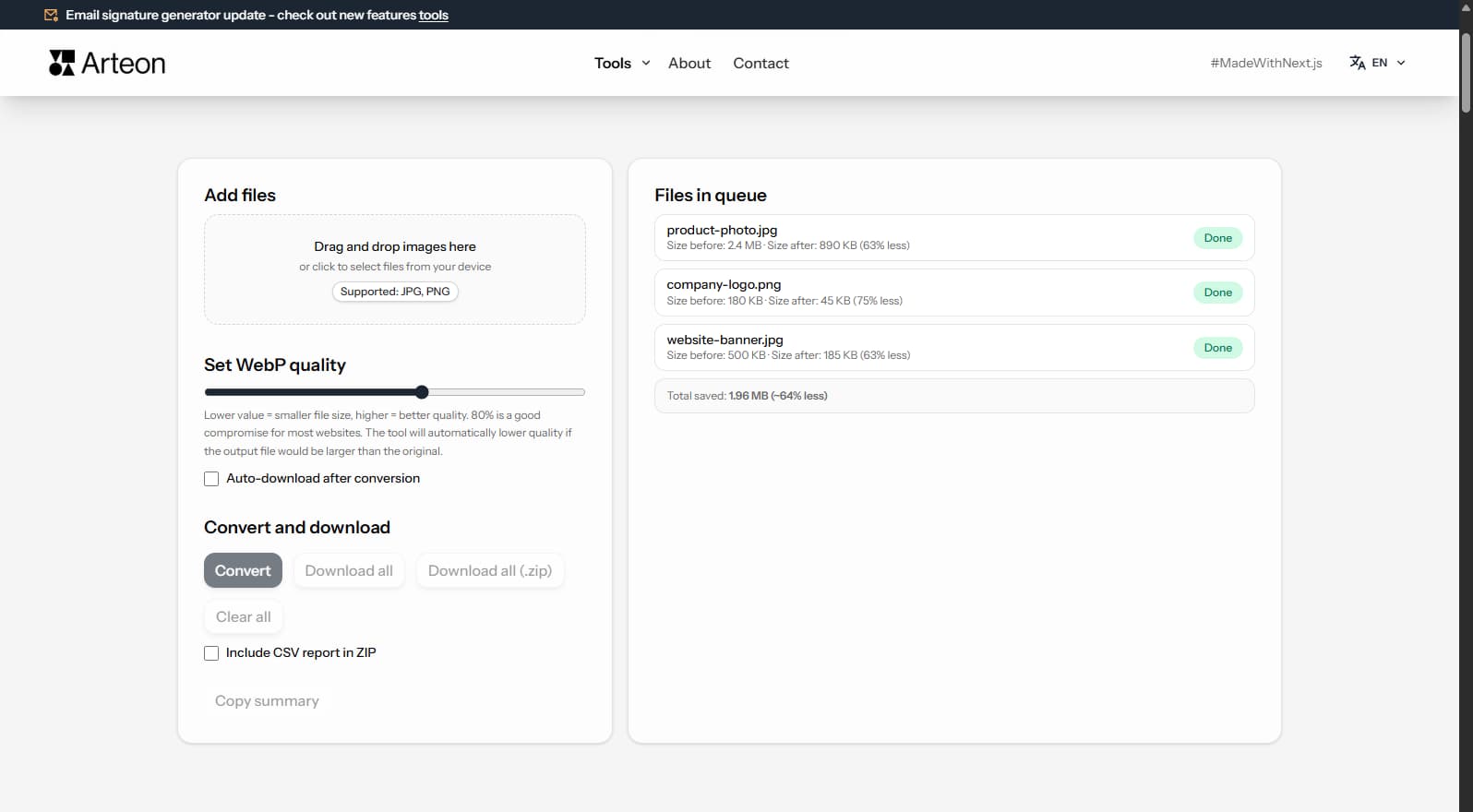
Drag your JPG images onto the upload area or click to select them. No limit on files.
Convert JPG photos to WebP and reduce their weight by up to 35%. Add files, set quality, and download. Everything runs locally.
To use this tool comfortably, open it on a laptop, desktop computer, or tablet in landscape mode.
Tip
If you are using a tablet, switch it to landscape mode - when the window width is large enough, the tool will load automatically.
WebP is a modern image format developed by Google that delivers significantly better compression than JPG. At equivalent visual quality, WebP files are typically 25–35% smaller than their JPG counterparts. This translates directly to faster page loads, lower bandwidth costs, and better Core Web Vitals scores.
WebP is supported by all major browsers: Chrome, Firefox, Safari 14+, and Edge. Both lossy and lossless compression modes are available. For photographs, lossy WebP at quality 80 produces files that are visually indistinguishable from JPG at quality 90 — but 30% smaller.
Converting your JPG images to WebP is one of the simplest ways to improve website performance. Google PageSpeed Insights specifically recommends serving images in next-gen formats like WebP.
This tool requires a desktop browser because WebP encoding relies on the Canvas API with WebP export support. All processing happens locally — no files are uploaded to any server.
Quick steps:
Common use cases:
| Feature | JPG | WebP |
|---|---|---|
| Lossy compression | ✓ | ✓ |
| Lossless compression | — | ✓ |
| Transparency (alpha channel) | — | ✓ |
| Animation support | — | ✓ |
| Web browser support | All browsers | Chrome 32+, Firefox 65+, Edge 18+, Safari 14+ |
| Color depth | 8-bit (16.7M) | 8-bit (16.7M) |
| Compact file size | ✓ | ✓ |
| Metadata (EXIF) | ✓ | ✓ |
The quality slider lets you set a value from 60% to 95%. Higher values mean better image quality but larger file sizes.
At 80% quality, the visual difference between the original JPG and the resulting WebP is virtually imperceptible to the naked eye, while the file is significantly smaller.
Core Web Vitals is a set of performance metrics Google uses when evaluating websites. One of them - LCP (Largest Contentful Paint) - measures the time it takes for the largest visible element to appear on screen. On many pages, that element is an image.
Converting JPG images to WebP reduces graphic file sizes, which directly shortens resource download time and improves the LCP score. Smaller files mean faster page loading - especially important on mobile devices with slower connections. Additional techniques like loading="lazy" and fetchpriority="high" speed up rendering.
Tools like PageSpeed Insights and Lighthouse identify specific files worth optimizing.
A few tips to help you avoid common issues during conversion:
Savings depend on the source file type and its original compression. Below are example results:
Camera photo
2.4 MB → 890 KB
Product image
500 KB → 185 KB
Screenshot / banner
350 KB → 230 KB
Actual savings may vary depending on image content and quality settings. The converter shows the exact size before and after conversion for each file.
Typically 25–35% smaller than JPG at equivalent visual quality. For example, a 2.4 MB camera photo typically becomes ~890 KB in WebP at quality 80 — a 63% reduction. Actual savings depend on image content and compression settings.
WebP uses lossy compression like JPG. At quality 80 (the default), the visual difference compared to the original JPG is virtually imperceptible to the human eye. For maximum quality, set the slider to 90–95 — files will be larger but closer to the original.
Yes. All modern browsers support WebP: Chrome 32+, Firefox 65+, Edge 18+, Safari 14+, and Opera 19+. Global browser support exceeds 97% as of 2024. For the remaining users on very old browsers, you can use the HTML <picture> element to serve JPG as a fallback.
WebP encoding relies on the browser's Canvas API with WebP export support. Desktop versions of Chrome, Firefox, Edge, and Safari support this reliably. Mobile browser support varies — some mobile browsers may not support Canvas-based WebP encoding.
Yes. There is no limit on the number of files. You can add as many JPG images as you need — they are processed sequentially in your browser. For very large batches (100+ files), consider splitting them into groups of 20–30 to avoid memory issues.
No. The entire conversion process runs locally in your browser using the Canvas API. Your images never leave your device — nothing is uploaded to any server. This ensures complete privacy and works even without an internet connection (after the page loads).
Yes. Use our <a href="/en/tools/webp-to-jpg-converter">WebP to JPG converter</a>. Note that converting back from WebP to JPG is a lossy-to-lossy conversion, so some additional quality loss may occur. Always keep your original JPG files as backups.
Individual files up to 100 MB are supported. Since processing happens in your browser, very large files (above 20 MB) may take longer to convert and use more memory. For best performance, keep individual files under 10 MB.
Have an idea, found a bug, or want to suggest a feature? Drop us a message - we respond within 24 hours.

Resize, crop and convert your image. Ready-made formats for social media, circular avatars, export to JPG/PNG/WebP.

Check title and description length in pixels. Live Google preview and optimization tips.
Convert PNG files to JPG in your browser. No file limits, no signup, no server uploads.

Create a complete favicon.ico set for your website from one image. All required sizes, no login.

Generate 9 palettes from one color: monochromatic, complementary, triadic and more. HEX codes.
Convert WebP files to universally compatible JPG. Works in every app and platform.

Check text and background contrast per WCAG 2.1 AA and AAA. Automatic color correction.

Create a QR code for a website, vCard business card or print. Export PNG and SVG, no registration.

Count words, characters, sentences and reading time. Check readability with the Flesch-Kincaid score.