1. Enter your details
Fill in your name, job title, company name, and contact information. Add a profile photo or logo if you like.
Build a professional email signature in minutes. Enter your details, choose colors, and copy the ready HTML code into Gmail, Outlook, or any email client.
To use this tool comfortably, open it on a laptop, desktop computer, or tablet in landscape mode.
Tip
If you are using a tablet, switch it to landscape mode - when the window width is large enough, the tool will load automatically.
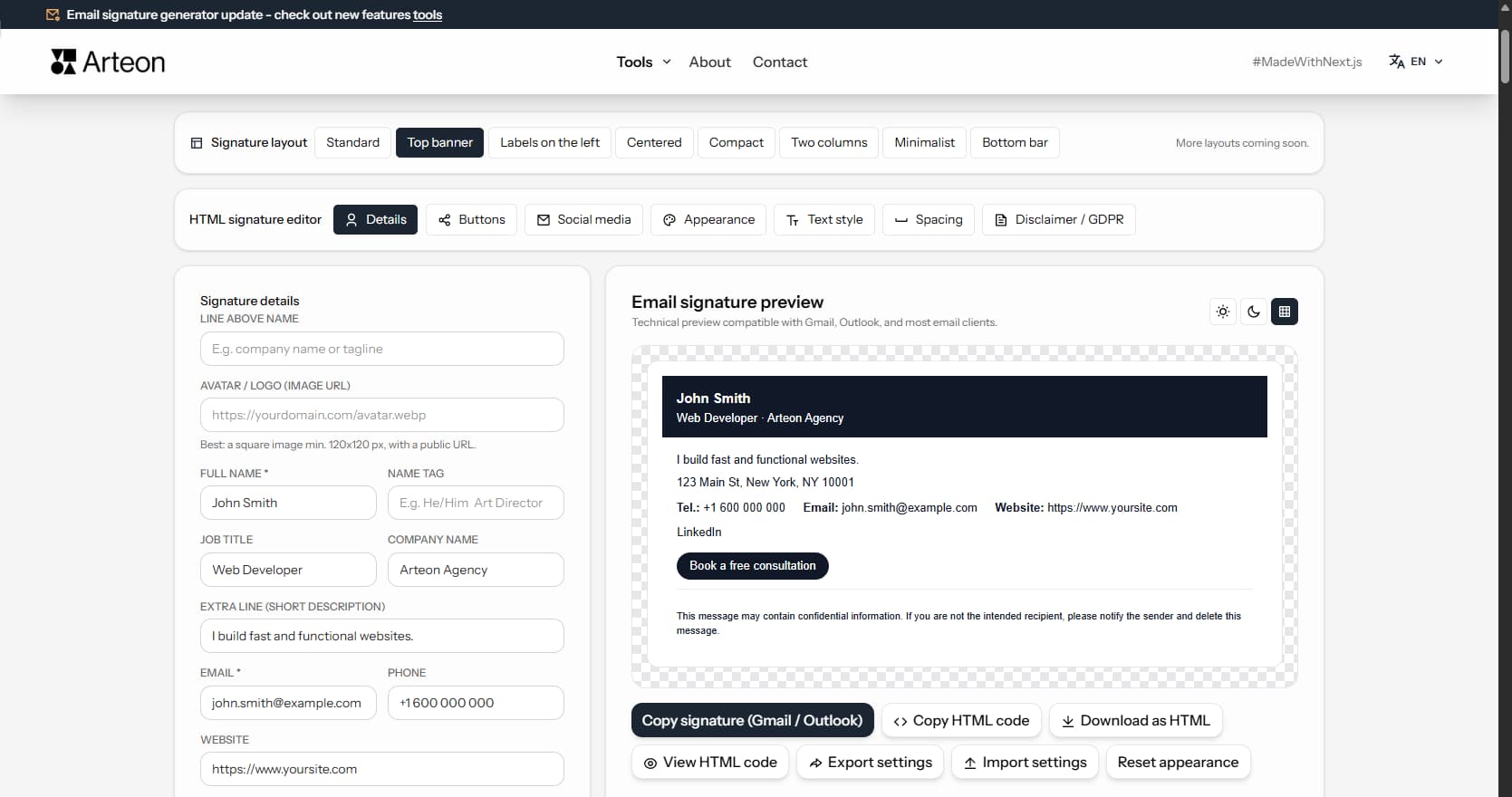
An email signature is a small block of text at the bottom of every message you send. Some people call it an email footer or a signature block. It shows your name, job title, company, and contact details. Many signatures also include a link to a website, a booking calendar, or social media profiles.
Why does this matter? The average office worker sends between 30 and 40 emails each day. Every one of those emails is a chance to share your contact information, build your brand, and make it easy for the reader to reach you. A clear, well-designed email sign-off saves the recipient time. They do not need to search old messages for your phone number or website address.
A professional signature block also builds trust. It shows that you care about details and keep a consistent company image in all business correspondence. In many countries, business emails must include specific legal information such as a company registration number or tax ID. Your email footer is the simplest place to add those details.
Building a professional email footer takes just a few minutes:
The Details tab holds all the fields you can fill in. Only two are required: your name and your email address. Every other field is optional. If you leave a field empty, it will not appear in your signature.
Signature layout
John Smith
Web Developer
Arteon Agency
john@example.com
+1 555 000 000
The signature builder offers eight ready-made layouts. Each one presents the same information in a different arrangement. Here is a quick guide to help you decide:
A CTA button (call to action) is a clickable element that sends the reader to a page you choose. It can link to a meeting calendar, a contact form, a product page, or a special offer. The email signature creator lets you add two CTA buttons.
You can add a second button in outline style (a transparent background with a visible border). Fill in the fields in the Secondary button section the same way as for the main button.
At the bottom of the Buttons tab you will find the Button rounding option. Three shapes are available: None (sharp corners), Slight (gently rounded), or Full (oval shape).
If you leave both fields (text and link) empty, the button will not show in the signature. Both fields are needed for the button to appear.
The Social Media tab lets you add links to your profiles. The signature builder supports twelve platforms: LinkedIn, Instagram, Facebook, TikTok, YouTube, X (formerly Twitter), GitHub, Dribbble, Behance, WhatsApp, Telegram, and Pinterest.
At the bottom of the tab you will find the Show icons next to service names toggle. When you turn it on, links appear as colorful SVG icons instead of plain text names.
The Appearance tab lets you change colors, fonts, and other visual elements of your signature block.
At the top of the tab you will find five ready-made themes: Dark, Blue, Purple, Green, and Gray. Click a theme to apply its accent color and text color instantly. This is the fastest way to get a consistent look.
The mail client sets the same size in points, where 14 px comes to 10.5 pt — the px to pt converter lines the two up.
You can add a border to any side of the signature: left, right, top, or bottom. Select all four sides to create a full border. The border uses your accent color. A left-side border is a popular choice - it adds a clean vertical accent without taking much space.
The Text Style tab gives you fine control over the color and font size of each text element in the signature.
Only elements that have content are visible. For each one you can set a custom color and a size offset:
Next to each element you will see a row of color options. Click a color square to select it. You can also add a custom color: click the square with the plus icon, pick a color, and click Save. Custom colors (up to eight) are shared across all elements. The reset button restores the default color.
Below the color row you will find size controls with minus and plus buttons. The number shows the offset from the base font size you set in the Appearance tab. The range is from −4 to +4 pixels.
The Spacing tab lets you control the exact distance between each part of the signature.
At the top of the tab you will find the padding option. This sets the gap between the signature content and its outer edges. Three values are available: 8 px (small), 16 px (medium), and 24 px (large).
Below the padding you will see controls for individual elements. Each control has plus and minus buttons to increase or decrease the gap. Only the elements that are currently in the signature are listed.
If you remove a field (for example, delete the phone number), the matching spacing option disappears from the tab automatically.
The Disclaimer / Legal tab lets you add legal text that appears at the bottom of the signature in a smaller font.
By default, the field contains a sample confidentiality text. You can edit it, delete it, or replace it with your own wording. If you leave the field empty, no disclaimer will appear.
Below the text field you will find the Show divider between contact details and disclaimer toggle. Turn it on to add a horizontal line above the legal text.
After you enable the line, three extra options appear:
In many countries, business emails must include certain company details by law. An email signature is the easiest way to meet these requirements. Below is a summary of the most common rules. This is general information, not legal advice - always check the current regulations in your country or consult a lawyer.
The EU E-Commerce Directive (2000/31/EC, Article 5) requires businesses that operate in the EU to clearly identify themselves in electronic communications. This means your emails should include your company name, geographic address, and a way to contact you. Most EU member states have turned this directive into local laws with even more specific requirements.
If your email signature contains personal data, such as a photo or a personal phone number, the General Data Protection Regulation (GDPR) may apply. Companies that process personal data should consider adding a short privacy notice or a link to their privacy policy. This is especially relevant for businesses that act as data controllers.
Under the Companies Act 2006 (Section 82), every business email sent by a UK limited company must show the company's registered name, registration number, registered office address, and the place of registration (for example, England and Wales). These rules also apply to LLPs under similar regulations. Use the Formal details field in the generator to add this information.
Germany has some of the strictest email signature rules in the EU. Under §35a GmbHG, every email from a GmbH must include the company name, legal form, registered office, court of registration, HRB number, and the names of all managing directors. Similar rules apply to other legal forms under §37a HGB and §80 AktG. Austria follows comparable rules under §14 UGB. Switzerland recommends including the UID number but is less strict. See the German-language version of this page for a full breakdown.
French commercial law (Article R123-237 of the Code de commerce) requires business emails to show the company name, legal form, share capital, SIREN or SIRET number, RCS registration city, and registered office. Belgium requires the KBO/BCE number, and Luxembourg requires the RCS Luxembourg number. See the French-language version for detailed guidance.
The United States does not mandate a specific email signature format for regular business emails. However, the CAN-SPAM Act requires commercial promotional emails to include a valid physical postal address. In Canada, CASL (Canada's Anti-Spam Legislation) requires clear sender identification and contact information in commercial messages. Adding your company address and contact details to every email is a good practice even when it is not legally required.
Here is a brief overview of what several other countries require in business email signatures:
The Formal details field in the email signature builder is designed for exactly this purpose. Enter your country-specific registration numbers there, and they will appear in every email you send.
A good email footer is clear, consistent, and easy to read. Here are the most important tips to follow when you build your signature.
Aim for four to seven lines of contact information. A long signature can overwhelm the reader and push the actual message out of view, especially on mobile phones. Include only the details that matter: name, title, company, one phone number, email, and website.
Too many colors make the signature look cluttered. Pick an accent color that matches your brand and keep the rest of the text in a dark, neutral tone. The Appearance tab in the email signature maker lets you set these colors in seconds.
Your name should be the most prominent element. Use the accent color or a slightly larger font for it. The Text Style tab lets you adjust the color and size of each element independently.
A CTA button turns every email into a gentle marketing message. Link it to a meeting calendar, a portfolio, a contact form, or a current offer. Even a simple "Visit our website" can drive traffic.
Not all fonts work in every email client. The generator offers five fonts that render correctly in Gmail, Outlook, Apple Mail, and Thunderbird: Arial, Verdana, Tahoma, Trebuchet MS, and Georgia. Avoid decorative or web-only fonts - they will be replaced by a default font on the recipient's device.
More than half of all emails are opened on a phone. Keep your signature narrow, use a reasonable text size (14 px is a good default), and avoid elements that rely on wide layouts. The Standard and Compact layouts work best on small screens.
If you add a logo or avatar, use an image hosted on your own website or a reliable CDN. Avoid link shorteners, Google Drive, or Dropbox links - some email clients block images from untrusted sources. The image should be square, at least 120 × 120 pixels, and in JPG, PNG, or WebP format.
The Formal details field in the Details tab is a multi-line text area where you can enter any registration numbers, tax IDs, or other legal identifiers your country requires.
If your country is not listed, check the legal requirements section above or consult your local business authority. The text you enter here will appear at the bottom of your email footer, right before the legal disclaimer.
The email signature builder saves your work automatically in your browser's local storage. When you refresh the page or come back later, all your data, layout, colors, and other options will still be there.
Every change you make - text, color, layout, spacing - is saved to your browser's memory right away. There are no save buttons to click. It all happens in the background.
Below the signature preview you will find a Reset appearance button. When you click it, a confirmation dialog will appear. If you confirm, all data and settings go back to their default values. This action cannot be undone.
Below the preview you will also find Export settings and Import settings buttons. Export saves everything - your data, colors, layout, spacing, and text styles - to a JSON file. Import loads a previously saved configuration from a file.
This feature is useful when you want to:
When your email footer is ready, follow these three steps to add it to your email client:
The preview panel sits on the right side of the editor. It updates automatically every time you make a change. The panel is sticky, so it stays visible even while you scroll through the editing options.
Above the preview you will find three background buttons: Light (default gray), Dark (dark background - useful for checking readability), and Checkerboard (shows transparency and edges clearly).
Below the preview you will find several buttons:
The signature builder is useful for anyone who sends business emails:
Content last reviewed: · written and checked by the Arteon team
Yes. The email footer builder generates HTML tables that display correctly in all major email clients: Gmail, Outlook (desktop and web), Apple Mail, and Thunderbird. The layout adapts to different screen sizes, including smartphones.
Yes. In the Details tab, paste the URL of your image (logo or photo). The image should be square (at least 120 × 120 pixels) and publicly accessible - for example, hosted on your own website. After you paste the URL, options for shape (round, rounded, square) and size (40, 56, or 72 px) will appear.
Click the Copy signature (Gmail / Outlook) button below the preview. This copies the signature as formatted HTML. Then open your email client's signature settings and press Ctrl + V (Windows) or Cmd + V (Mac) to paste it.
Yes. The generator does not require login or registration. Each person on the team can open the tool, enter their details, and copy the result. To keep the design consistent, agree on a layout, color theme, and font. You can also export the configuration as a JSON file and share it - each person just imports it and changes their personal details.
The signature maker supports twelve platforms: LinkedIn, Instagram, Facebook, TikTok, YouTube, X (formerly Twitter), GitHub, Dribbble, Behance, WhatsApp, Telegram, and Pinterest. You can display them as text links or as colorful SVG icons.
You need to fill in at least two fields: your name and your email address. Check that both fields have content.
The image must be publicly accessible on the internet. The URL should point directly to an image file (ending in .jpg, .png, or .webp). Images hosted on Google Drive or Dropbox need a special sharing link - a regular sharing URL will not work.
Different email clients (Gmail, Outlook, Apple Mail) may render HTML slightly differently. The generator uses safe, widely supported styles. If you see major differences, make sure you are pasting the signature with Ctrl + V, not using Paste as plain text.
The button needs both fields: text and link. Check that in the Buttons tab both fields are filled in and the URL starts with https://.
Below the signature preview you will find Export settings and Import settings buttons. Export saves everything (data, colors, layout, spacing, text styles) to a JSON file. Import loads it back and applies all settings automatically.
Click the View HTML code button below the preview. A popup with the full source code will open. You can review and copy it from there. You can also use Copy HTML code to get the raw code in your clipboard, or Download as HTML to save it as a file.
Yes. After you paste an image URL in the Details tab, extra options appear: Avatar shape (round, rounded, or square) and Avatar size (small - 40 px, medium - 56 px, large - 72 px). These settings apply to all layouts.
In the Disclaimer / Legal tab, turn on the Show separator line toggle. New options will appear: line style (solid, dashed, or dotted), thickness (1–3 px), and color (default gray or any color you choose from the palette).
It depends on your country. In the EU, business emails typically must include the company name, registered office, and registration number. The UK requires the company number and registered address. Germany adds the names of managing directors. The US requires a physical address in commercial emails. Check the legal requirements section on this page for a full overview, and use the Formal details field to add the required information.
Keep the signature short (four to seven lines), use a standard text size (14 px), and choose a layout that works well on narrow screens - Standard and Compact are the safest options. Avoid very wide layouts like Two columns if many of your recipients read emails on their phones.
The best option is your own website or a reliable CDN. Upload the image there and use the direct URL. Avoid link shorteners, Google Drive, or Dropbox - some email clients block images from these sources. The image should be square, at least 120 × 120 px, and in JPG, PNG, or WebP format.
Yes. The generator saves settings per browser session. You can create one signature, export the configuration as JSON, then reset and create a different one. Import the saved JSON whenever you need to switch back. In Gmail and Outlook, you can also set up multiple signatures and choose which one to use for each email.
A good email footer has four to seven lines of contact information. This includes your name, title, company, one phone number, email, and website. Adding a CTA button and a legal disclaimer is fine, but try not to exceed eight to ten total lines. A shorter signature loads faster and looks better on mobile devices.
Have an idea for a new feature, found a bug, or want to suggest another tool that would make your work easier? Write to us - we respond within 24 hours.
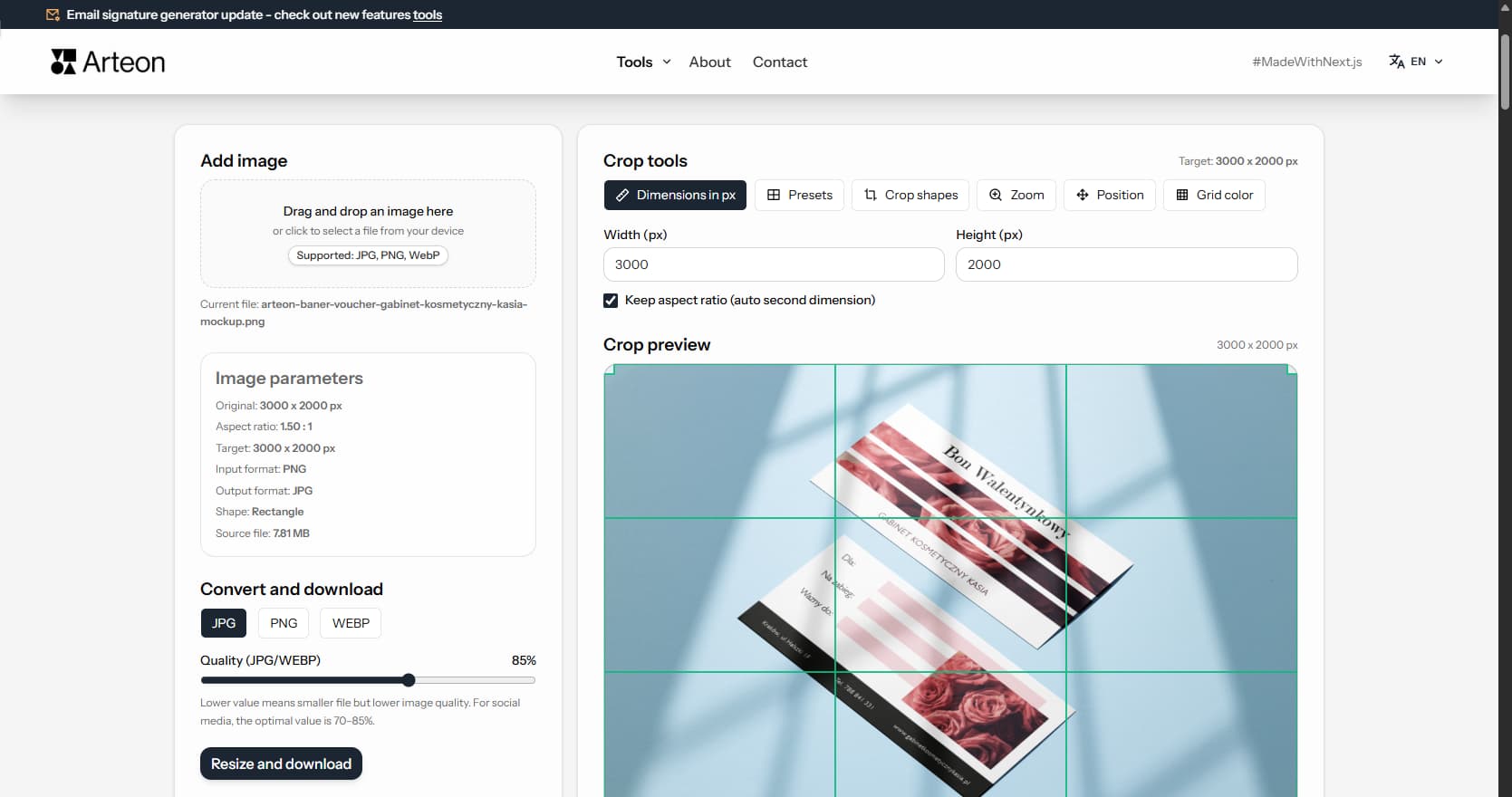
Resize, crop and convert your image. Ready-made formats for social media, circular avatars, export to JPG/PNG/WebP.

Check title and description length in pixels. Live Google preview and optimization tips.
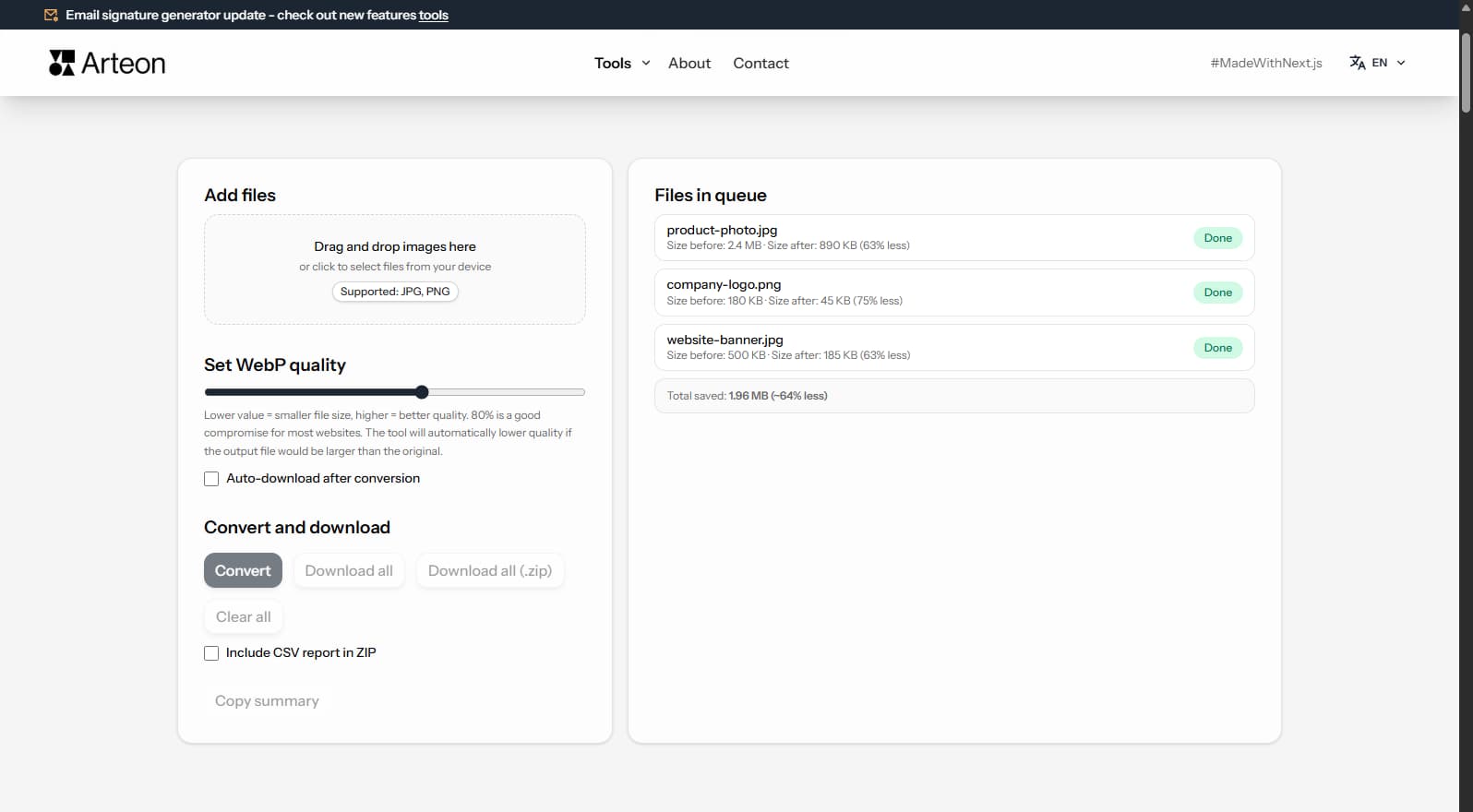
Convert PNG files to JPG in your browser. No file limits, no signup, no server uploads.
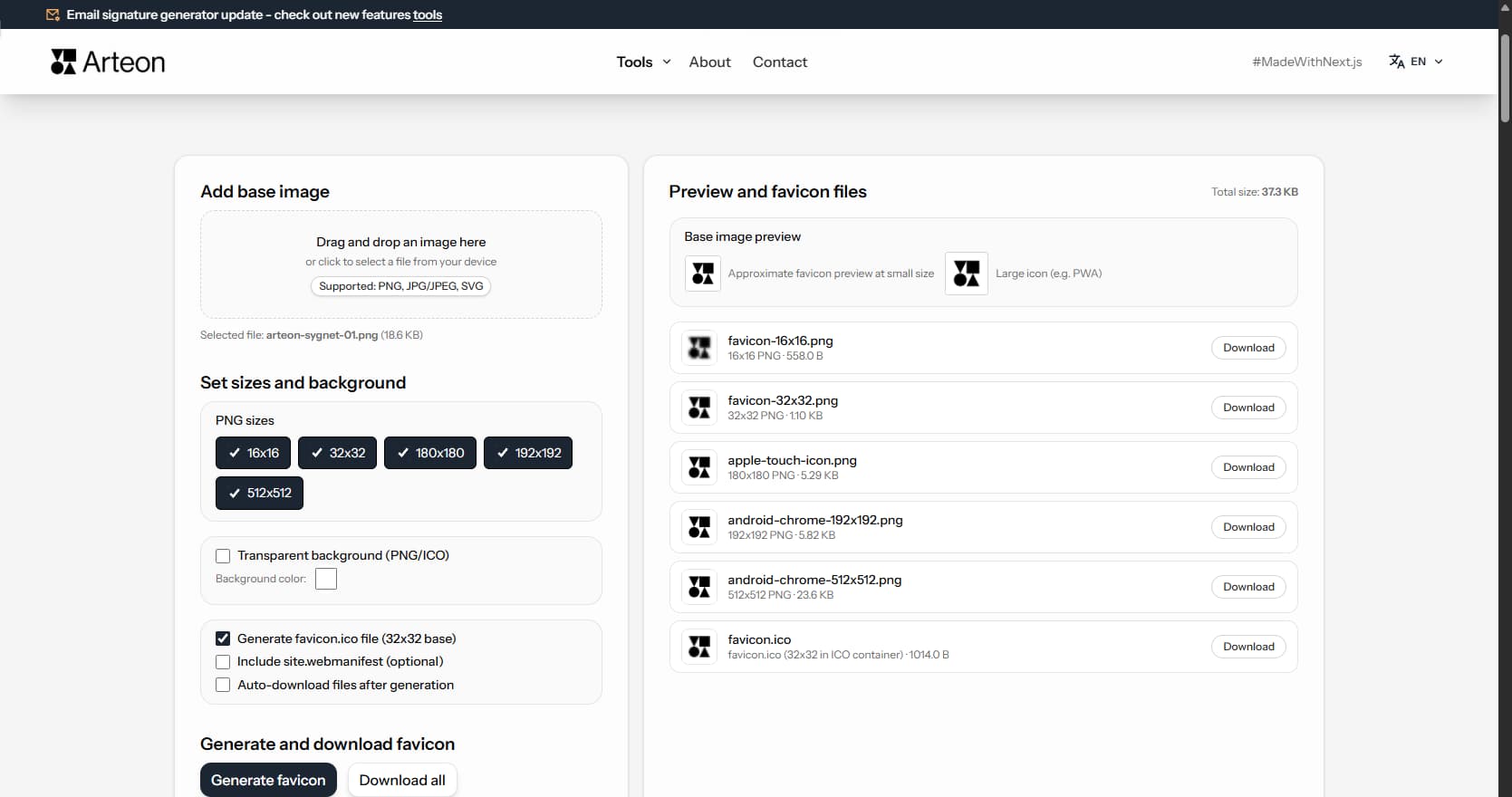
Create a complete favicon.ico set for your website from one image. All required sizes, no login.
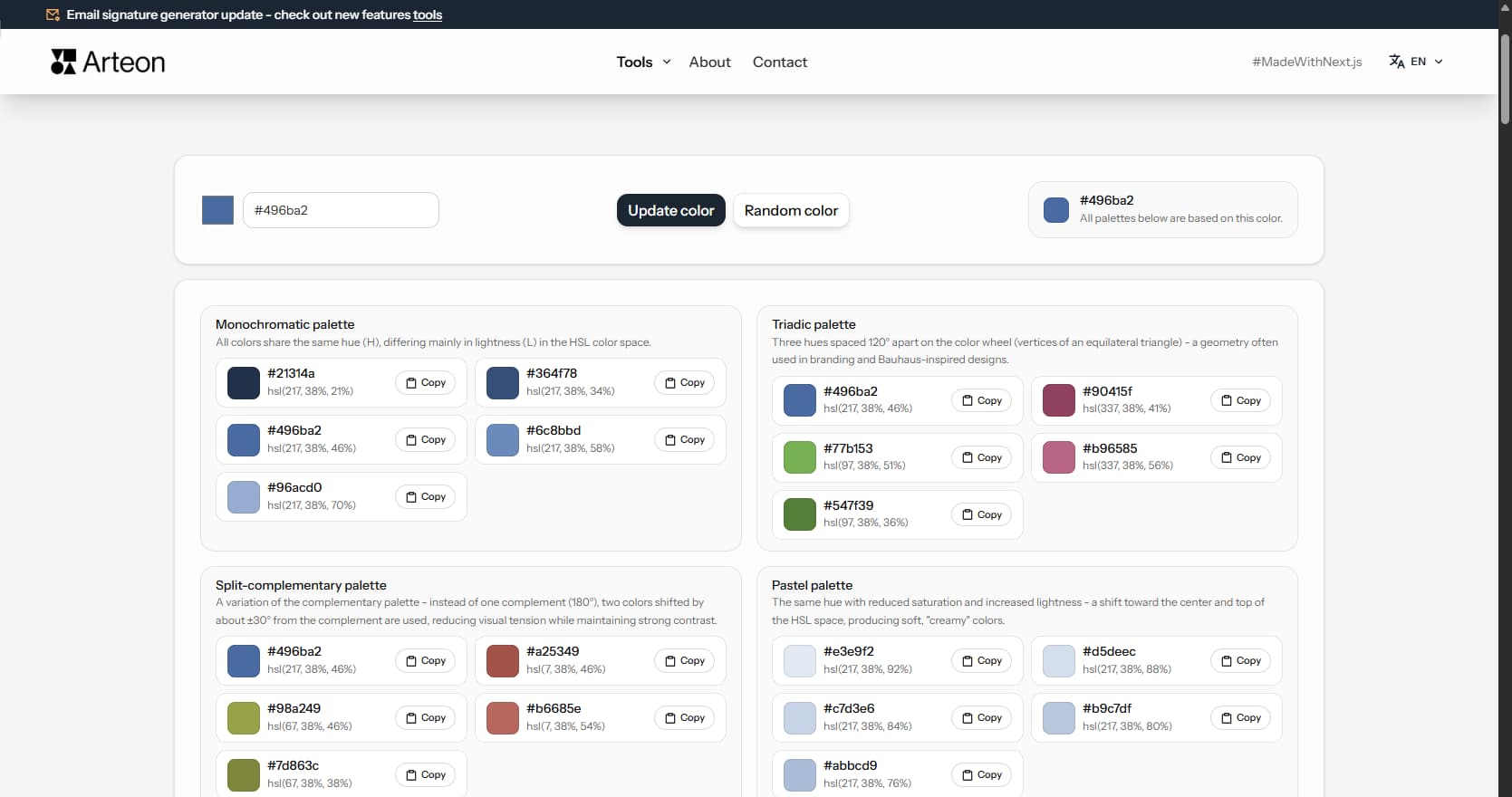
Generate 9 palettes from one color: monochromatic, complementary, triadic and more. HEX codes.
Convert WebP files to universally compatible JPG. Works in every app and platform.
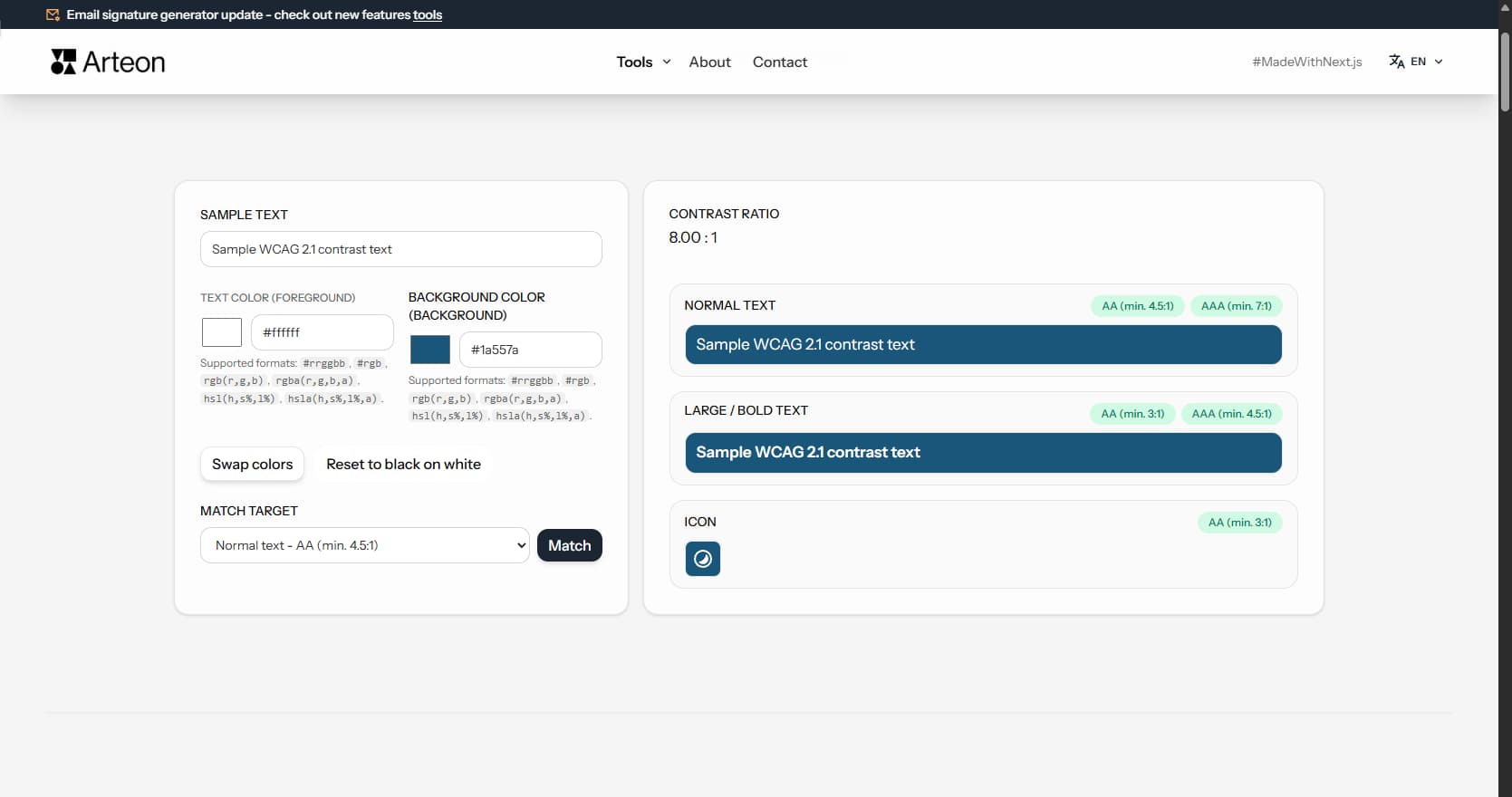
Check text and background contrast per WCAG 2.1 AA and AAA. Automatic color correction.
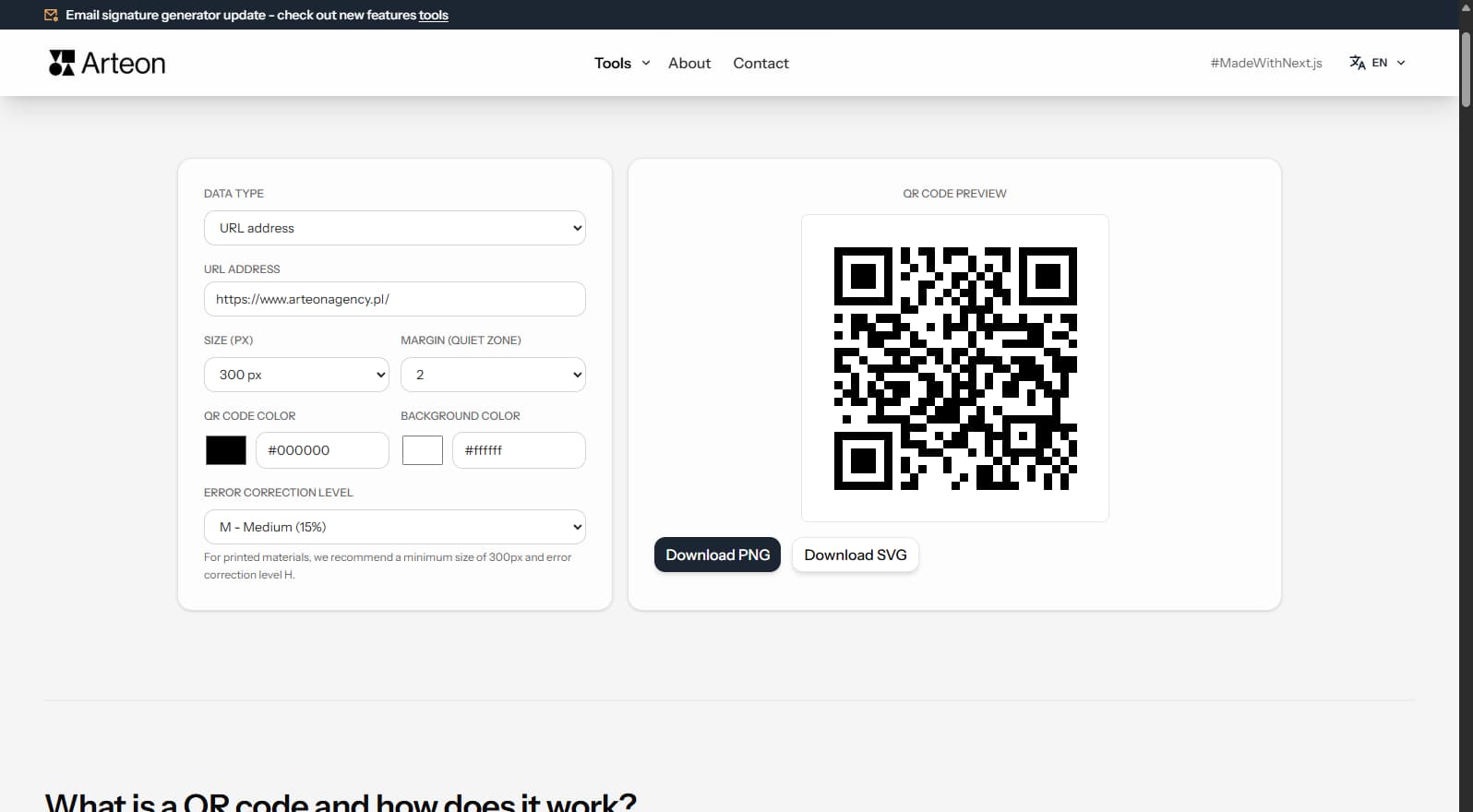
Create a QR code for a website, vCard business card or print. Export PNG and SVG, no registration.
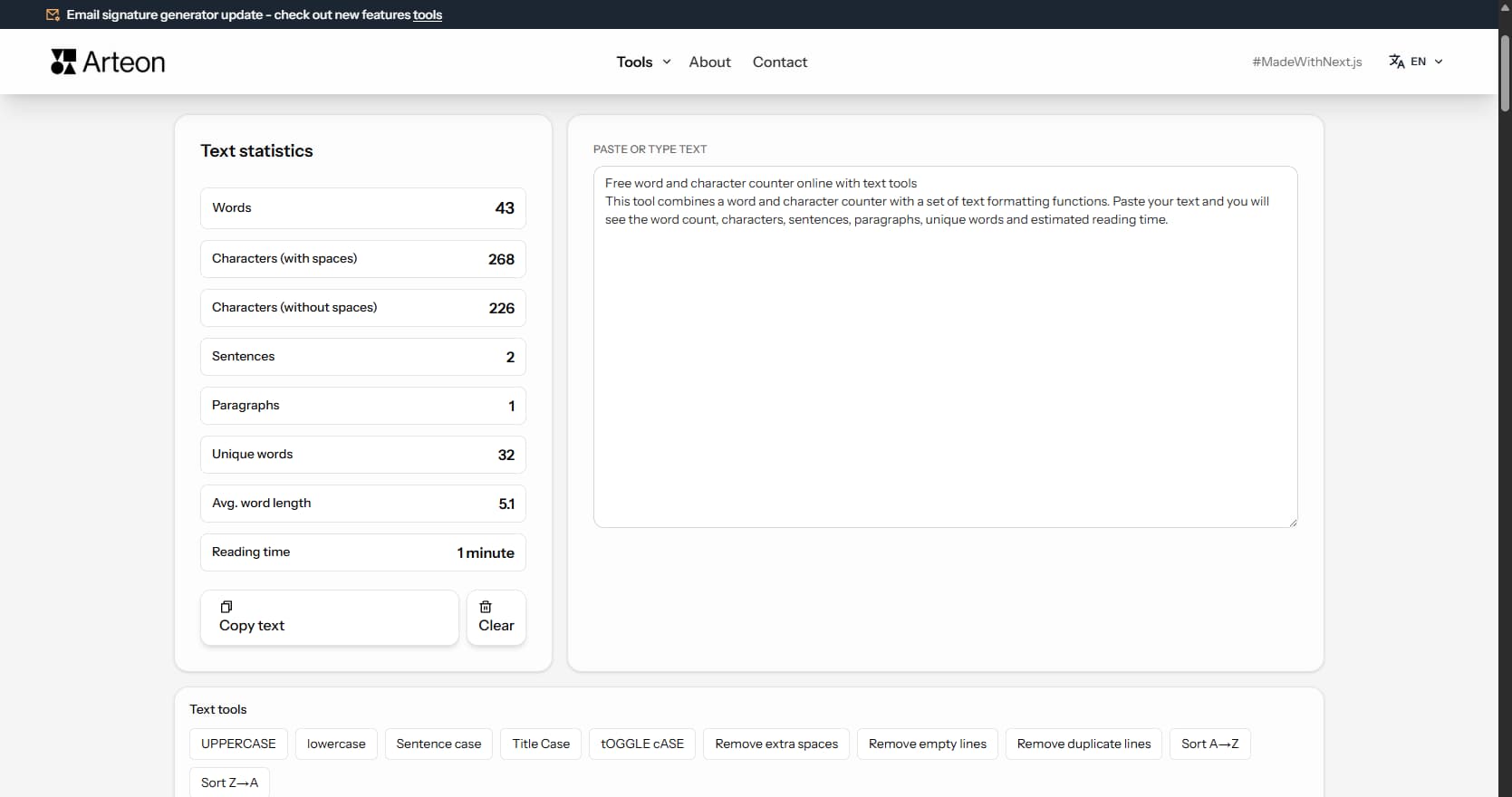
Count words, characters, sentences and reading time. Check readability with the Flesch-Kincaid score.
Technical preview compatible with Gmail, Outlook, and most email clients.
|
"Download as HTML" saves the ready-to-use signature for pasting into your email client. "Export settings" saves a .json file you can later load via "Import settings" to resume editing.