1. Add an image
Drag a file onto the designated area or select an image from your device. Supported formats: JPG, PNG, WebP.
Resize, crop, and convert images for Instagram, Facebook, and LinkedIn. Ready-made formats, circular avatars, export to JPG, PNG, and WebP. Local processing in the browser.
To use this tool comfortably, open it on a laptop, desktop computer, or tablet in landscape mode.
Tip
If you are using a tablet, switch it to landscape mode - when the window width is large enough, the tool will load automatically.
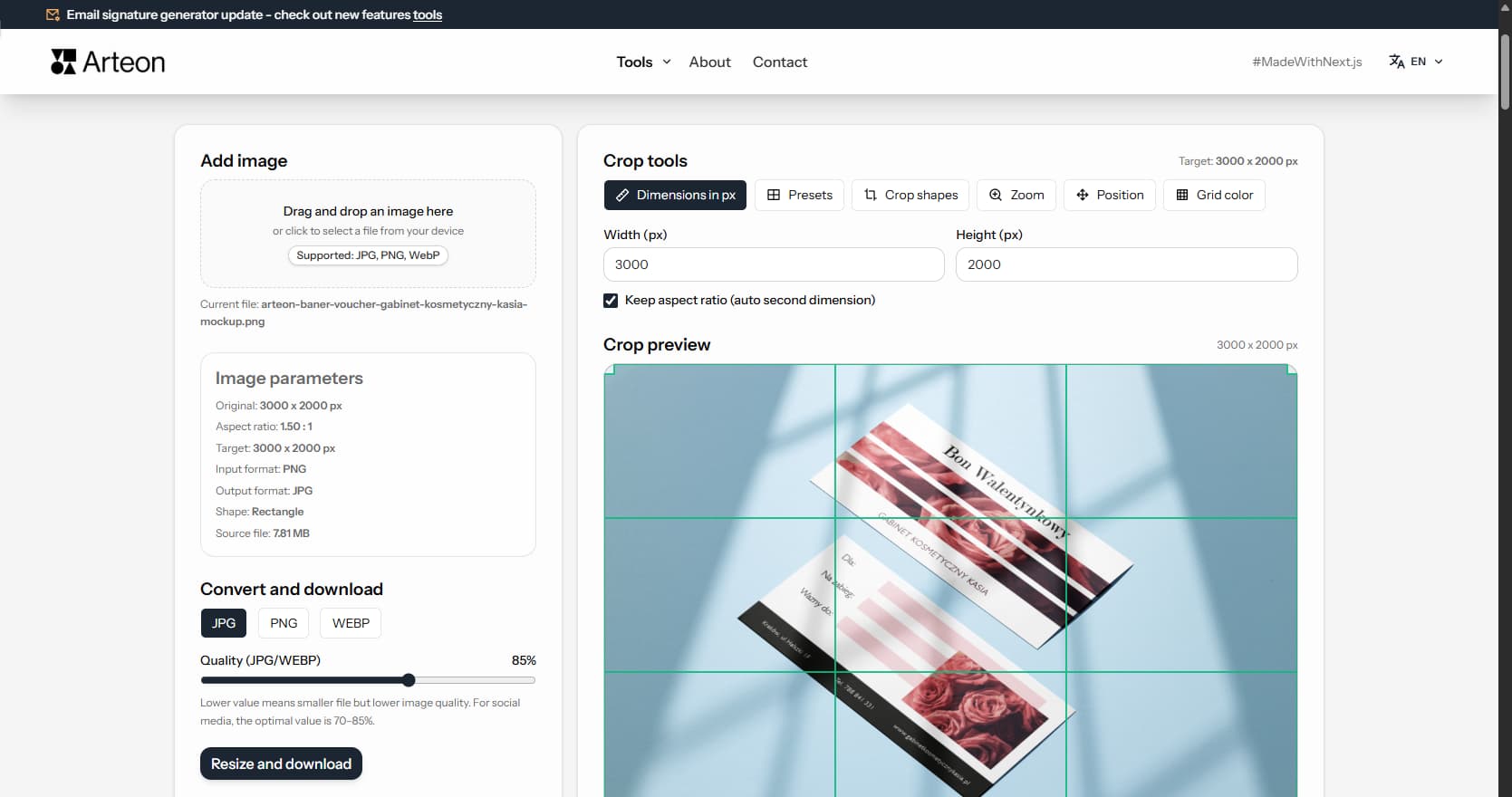
The image editor lets you quickly adapt images to specific dimensions. You can resize an image to any pixel dimensions, select a ready-made format for social media, or crop a section of the image with precise framing.
In addition to resizing, the tool offers format conversion (JPG, PNG, WebP), circular avatar creation, and compression quality control.
Editing an image takes just a few seconds:
The tool accepts images in JPG, PNG, and WebP formats. You can add an image in two ways:
After adding an image, the tool automatically reads its original dimensions and displays a preview. You can now proceed to crop settings.
In the Dimensions in px tab, you enter width and height manually. The Keep proportions option automatically adjusts the second dimension.
The tool includes ready-made formats with optimal dimensions for the most popular platforms:
| Platform | Format | Dimensions (px) | Ratio |
|---|---|---|---|
| Square post | 1080 x 1080 | 1:1 | |
| Portrait post | 1080 x 1350 | 4:5 | |
| Story / Reels | 1080 x 1920 | 9:16 | |
| Post | 1200 x 630 | ~1.9:1 | |
| Page cover | 820 x 360 | ~2.3:1 | |
| Post | 1200 x 1200 | 1:1 | |
| Profile banner | 1584 x 396 | 4:1 | |
| OG image | Link sharing | 1200 x 630 | ~1.9:1 |
Dimensions in the table are recommended sizes for each platform. The tool automatically sets these dimensions when you select the appropriate format.
Each format corresponds to specific platform or use case requirements:
After setting target dimensions, an interactive crop area appears on the preview. The bright part of the image is the section that will be saved - the rest is dimmed.
Dragging the crop
Grab the bright area and drag it to any part of the image. This way you choose which section of the photo will be exported.
Resizing via handles
In the corners of the crop area there are small squares (handles). Dragging them changes the crop size - you can enlarge or shrink it while maintaining the chosen proportions.
Zoom
In the Zoom tab you will find a slider to adjust zoom (100–300%). A higher value means the crop covers a smaller section of the original image - useful when you want to cut out a specific detail.
Precise position control
In the Position tab you can set the exact crop position in percentages (0–100% for X and Y axes). Centering buttons let you quickly position the crop at the center of the image.
In the Crop Shapes tab, you choose the shape of the exported image: rectangle (with selected proportions), square (forces 1:1), or circle (with transparent background).
The circle shape creates a round avatar with a transparent background outside the circle. The tool automatically switches the format to PNG or WebP, since JPG does not support transparency.
A grid dividing the image into 9 equal parts is visible on the crop area. This is a visualization of the rule of thirds - one of the fundamental principles of photographic composition.
The rule states that the most important elements of a photo (face, product, point of interest) should be placed at the intersections of the grid lines or along them. Such composition is more dynamic and pleasing to the eye than placing the subject exactly in the center.
In the Grid color tab you can change the line color (green, white, black, red, yellow) so the grid is clearly visible on different images.
The most popular format for photos. Good compression while maintaining visual quality. Does not support transparency - the background will always be filled with a color.
A good choice for product photos, portraits, and most website graphics. The quality slider (60–100%) controls compression.
Lossless format - preserves full quality, but files are larger. Supports transparency (required for the circle shape).
A good choice for graphics with text, icons, and images requiring sharp edges.
Modern format combining the advantages of JPG and PNG - small files, good quality, transparency support. Supported by all modern browsers.
Recommended for websites - smaller files mean faster loading.
The aspect ratio is the relationship between the width and height of an image. Written as two numbers separated by a colon:
The dimensions and aspect ratio of a social media graphic influence how much screen space it occupies in a follower's feed - and more screen space means longer exposure time during scrolling. On Instagram, a vertical post (1080×1350 px, 4:5 ratio) takes up roughly 30% more vertical space than a square post (1080×1080 px). This additional real estate increases the probability that a user pauses, reads the caption, and interacts with the content.
Feed aesthetics matter beyond individual posts. The Instagram profile grid arranges thumbnails in rows of three, creating a visual mosaic that visitors evaluate in seconds. Planning the grid in advance - alternating background colors, maintaining consistent crop proportions, and repeating brand elements - builds a cohesive look that signals professionalism. Businesses that maintain grid consistency report higher profile visit-to-follow conversion rates.
Carousel posts (multi-slide posts) on Instagram and LinkedIn allow up to 10 slides per post. Every slide should share the same pixel dimensions and visual style. Inconsistent sizing between slides creates a jarring experience and can cause cropping artifacts on certain devices. Preparing all carousel slides at identical dimensions before uploading eliminates this issue entirely.
A brand color palette should appear consistently across every graphic: backgrounds, text overlays, borders, and accent elements. Cropping images to the exact platform dimensions before publishing ensures that the platform algorithm does not re-crop or letterbox the image in unexpected ways. This level of control over visual output is the foundation of a reliable content strategy.
The rule of thirds divides an image into nine equal sections using two horizontal and two vertical lines. Placing the main subject at one of the four intersections creates a more dynamic and visually engaging composition than centering it. This principle applies equally to photographs, product shots, and social media graphics - the human eye naturally gravitates toward off-center focal points.
Negative space - the empty area surrounding the subject - gives the viewer's eye room to breathe. In product photography, generous negative space around the item draws attention to it without visual clutter. For social media graphics that include text overlays, negative space provides a clean area where the text remains legible without competing with background details.
Leading lines are visual elements (roads, fences, architectural edges, shadows) that guide the viewer's gaze toward the focal point. When cropping an image, preserving leading lines that point inward keeps the composition purposeful. Cutting off a leading line at the edge of the frame can make the image feel incomplete or unbalanced.
The golden ratio (approximately 1:1.618) is an alternative to the rule of thirds that produces a slightly tighter focal area. Some photographers prefer it for portraits and close-up shots. In practice, the difference between rule-of-thirds placement and golden-ratio placement is subtle, but both consistently outperform dead-center compositions in visual appeal.
When cropping for social media, consider which part of the image carries the most visual weight. Move the crop frame so that the focal point - a face, a product, a key detail - sits on or near an intersection point. The crop zoom and position controls in this editor make this adjustment precise, letting you fine-tune placement down to the pixel.
YouTube thumbnails should measure 1280×720 pixels (16:9 ratio) with a maximum file size of 2 MB. The thumbnail is one of the strongest factors influencing click-through rate on YouTube - a clear face crop, readable text, and high-contrast colors consistently outperform generic screenshots. Custom thumbnails receive significantly more clicks than auto-generated frames from the video.
Pinterest favors tall, vertical pins. The optimal pin size is 1000×1500 pixels (2:3 ratio). Vertical pins occupy more space on the Pinterest board and in search results, which increases their visibility and save rate. Product images, infographics, and step-by-step tutorials in this format perform particularly well on the platform.
TikTok cover images should be 1080×1920 pixels (9:16 ratio). This is the same ratio as Instagram Stories and Reels, but TikTok displays the cover as a profile grid thumbnail - important elements should be centered because the sides may be cropped in the grid view. A well-composed cover image makes the profile page look organized and inviting.
Posts on X (formerly Twitter) display best at 16:9 (1600×900 px) or 2:1 ratio. Images that do not match these proportions are cropped automatically in the feed, often cutting off important content. Threads, Meta's text-based platform, supports images up to 1440 pixels wide. Discord server icons require a square image (at least 512×512 px), and Twitch channel banners use 1200×480 pixels.
Each platform applies its own cropping and compression algorithm to uploaded images. Preparing graphics at the exact recommended dimensions - and exporting them in the optimal format and quality - ensures the final result matches the original design. This editor supports all of the above dimensions through custom pixel input or can be matched manually to any platform requirement.
Small businesses and freelancers often manage their own social media without a dedicated designer. A consistent visual identity across posts, stories, and profile elements builds brand recognition - even on a limited budget. The key is establishing a simple brand kit: two or three brand colors, one or two fonts, and a set of standard image dimensions for each platform used regularly.
Batch preparation of weekly content saves significant time. Instead of editing each image individually before posting, prepare all graphics for the week in one session. Set the target dimensions once (e.g., 1080×1350 for Instagram posts), crop and export each image in sequence, and store the finished files in a dated folder. This workflow reduces context-switching and ensures dimensional consistency across all posts.
Freelancers building a portfolio benefit from uniform image presentation. Project screenshots, mockups, and case study visuals should share the same aspect ratio and export quality. A portfolio page with images of varying sizes and aspect ratios looks disorganized and undermines the professional impression the work itself creates.
For businesses that publish on multiple platforms simultaneously, preparing several crop variants of the same source image is efficient. One photograph can yield a 1080×1350 Instagram post, a 1200×630 Facebook/OG graphic, and a 1000×1500 Pinterest pin - each cropped to highlight the most relevant section for that platform. This multi-crop approach maximizes the value of every photograph without requiring separate photoshoots.
This editor processes images entirely in the browser using the Canvas API - a built-in component of every modern web browser. When you add an image, the file is read into the browser's memory (RAM) and rendered onto an invisible canvas element. All cropping, resizing, and format conversion operations happen on this local canvas. The finished image is generated as a downloadable file directly from the canvas data. At no point does the image leave the device or travel over the internet.
Photographs taken with smartphones and digital cameras often contain EXIF metadata - embedded information about the date, time, camera model, exposure settings, and sometimes GPS coordinates of the location where the photo was taken. Publishing images with location data can pose a privacy risk, particularly for personal photos or images taken at client premises. Most social media platforms strip EXIF data during upload, but websites, blogs, and email attachments may preserve the original metadata in the file.
Compared to cloud-based editors such as Canva, Adobe Express, or Pixlr, browser-based processing does not require uploading files to an external server. This means images are not stored on third-party infrastructure, are not subject to external privacy policies, and cannot be accessed by the service provider. For businesses handling client materials, confidential product images, or legally sensitive visuals, local processing eliminates a category of data-handling risk entirely.
The editor also functions offline after the page has loaded. Once the application code is cached by the browser, an active internet connection is not required for cropping, resizing, or exporting. This is useful in environments with limited connectivity or when maximum control over file handling is a priority.
Yes, though processing may be slower for images above 4000×4000 pixels - this depends on the device's power and available browser memory. All processing happens locally, without sending files to a server.
JPG is a good choice for photos with many colors and gradients - files are small with good quality. PNG preserves the highest quality and supports transparency (e.g., circular avatar). WebP combines the advantages of both - small files with high quality and transparency support.
In the Crop Shapes tab, select the Circle option. The tool will automatically switch the format to PNG or WebP (JPG does not support transparency). The area outside the circle will be transparent.
Instagram supports three main formats: square post (1080×1080 px, 1:1 ratio), portrait post (1080×1350 px, 4:5 ratio), and story/reels (1080×1920 px, 9:16 ratio). The tool has ready-made formats for each of these dimensions.
The quality slider (60–100%) controls the compression level for JPG and WebP formats. A higher value means better image quality but a larger file size. For most social media use cases, the optimal value is 70–85%.
JPG format does not support transparency. The circle shape requires a transparent background outside the circle, so the tool automatically limits the choice to PNG or WebP - formats with an alpha channel.
Aspect ratios define the relationship between the width and height of an image. For example, 4:5 means the width is 4 parts and the height is 5 parts. 16:9 is the typical ratio for films and presentations. Instagram portrait post uses 4:5, while story and reels use 9:16.
Have an idea for a new feature, found a bug, or want to suggest another tool that would make your work easier? Write to us – we respond within 24 hours.
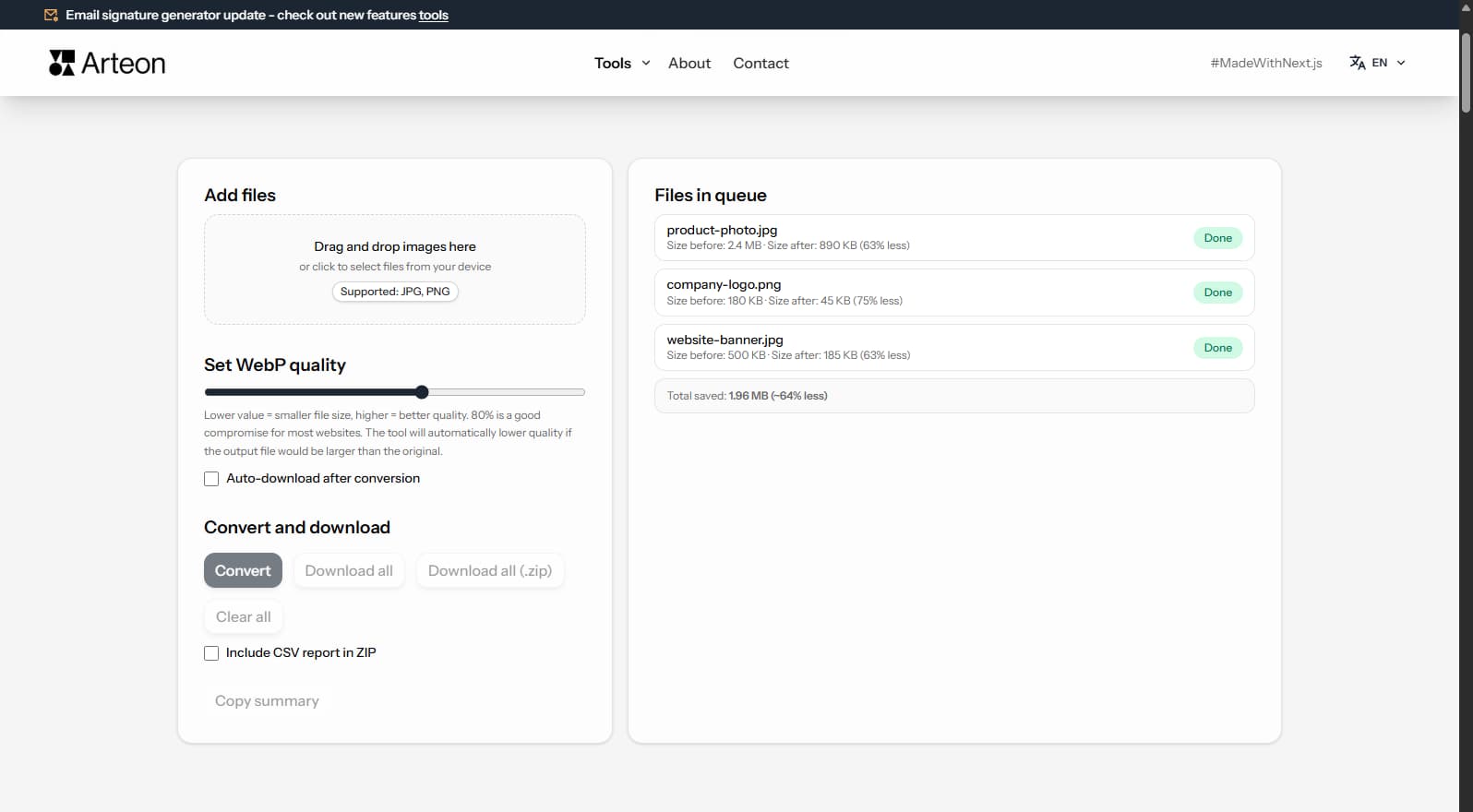
Resize, crop and convert your image. Ready-made formats for social media, circular avatars, export to JPG/PNG/WebP.

Check title and description length in pixels. Live Google preview and optimization tips.
Convert PNG files to JPG in your browser. No file limits, no signup, no server uploads.
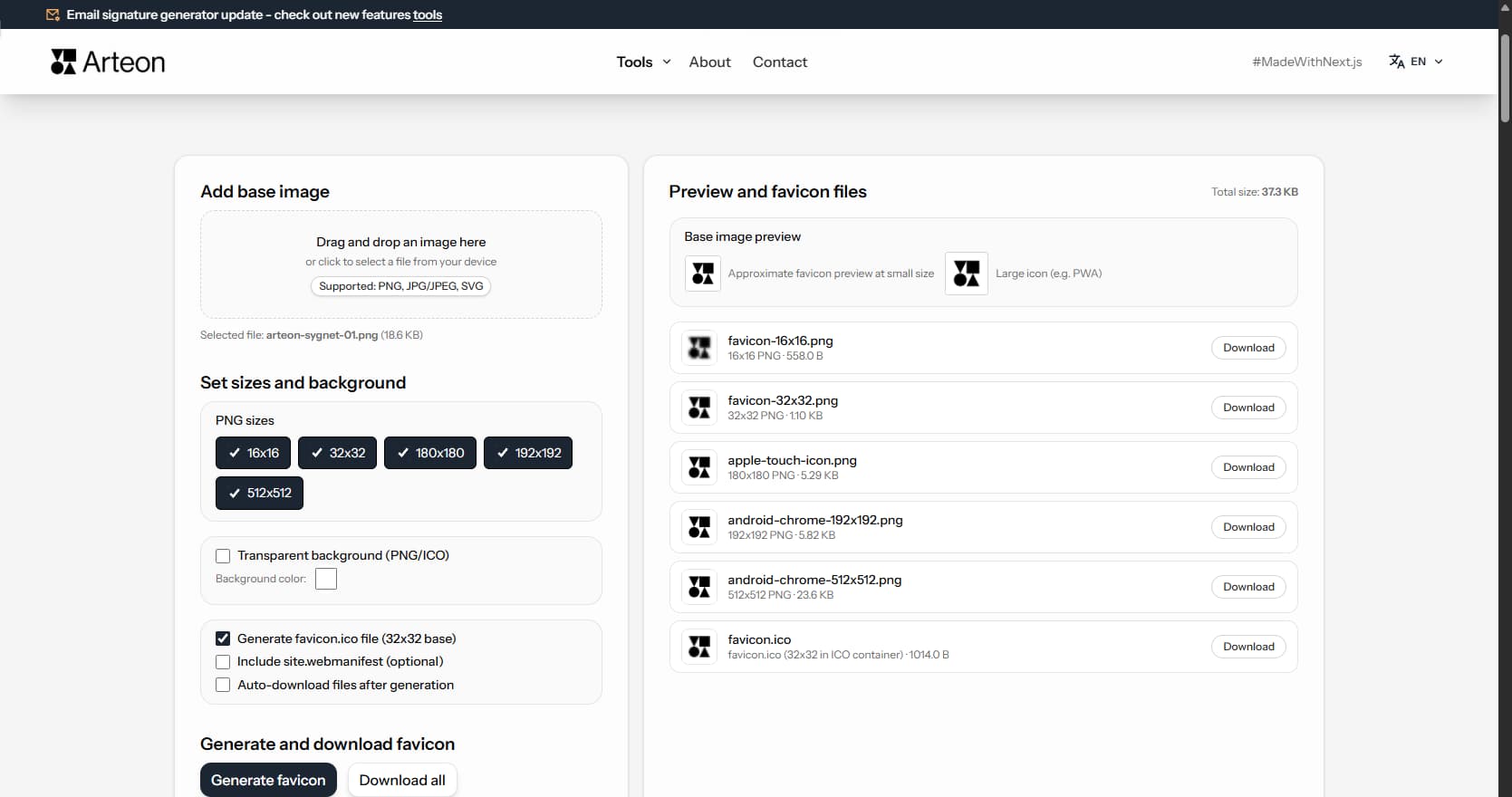
Create a complete favicon.ico set for your website from one image. All required sizes, no login.
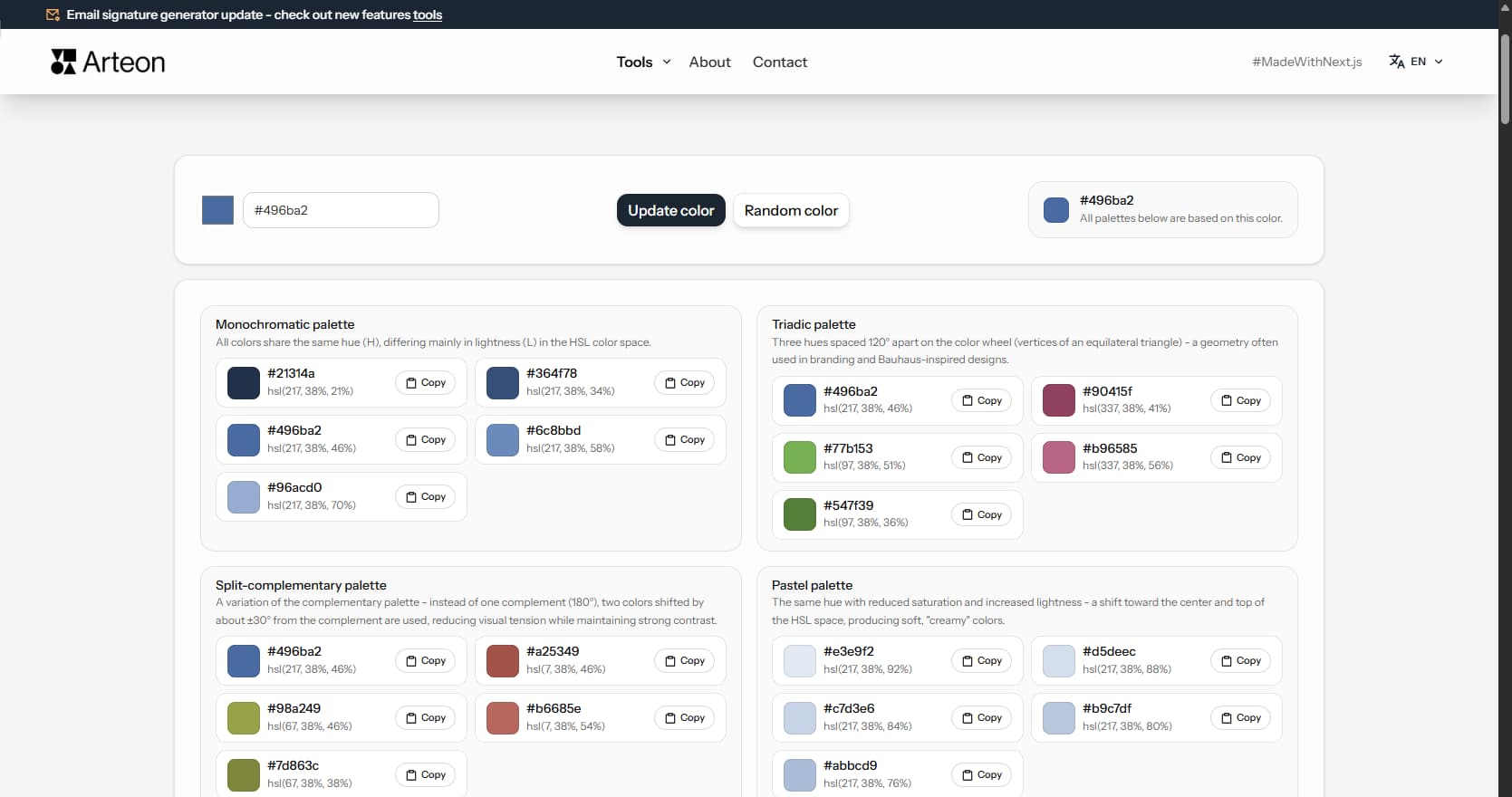
Generate 9 palettes from one color: monochromatic, complementary, triadic and more. HEX codes.
Convert WebP files to universally compatible JPG. Works in every app and platform.
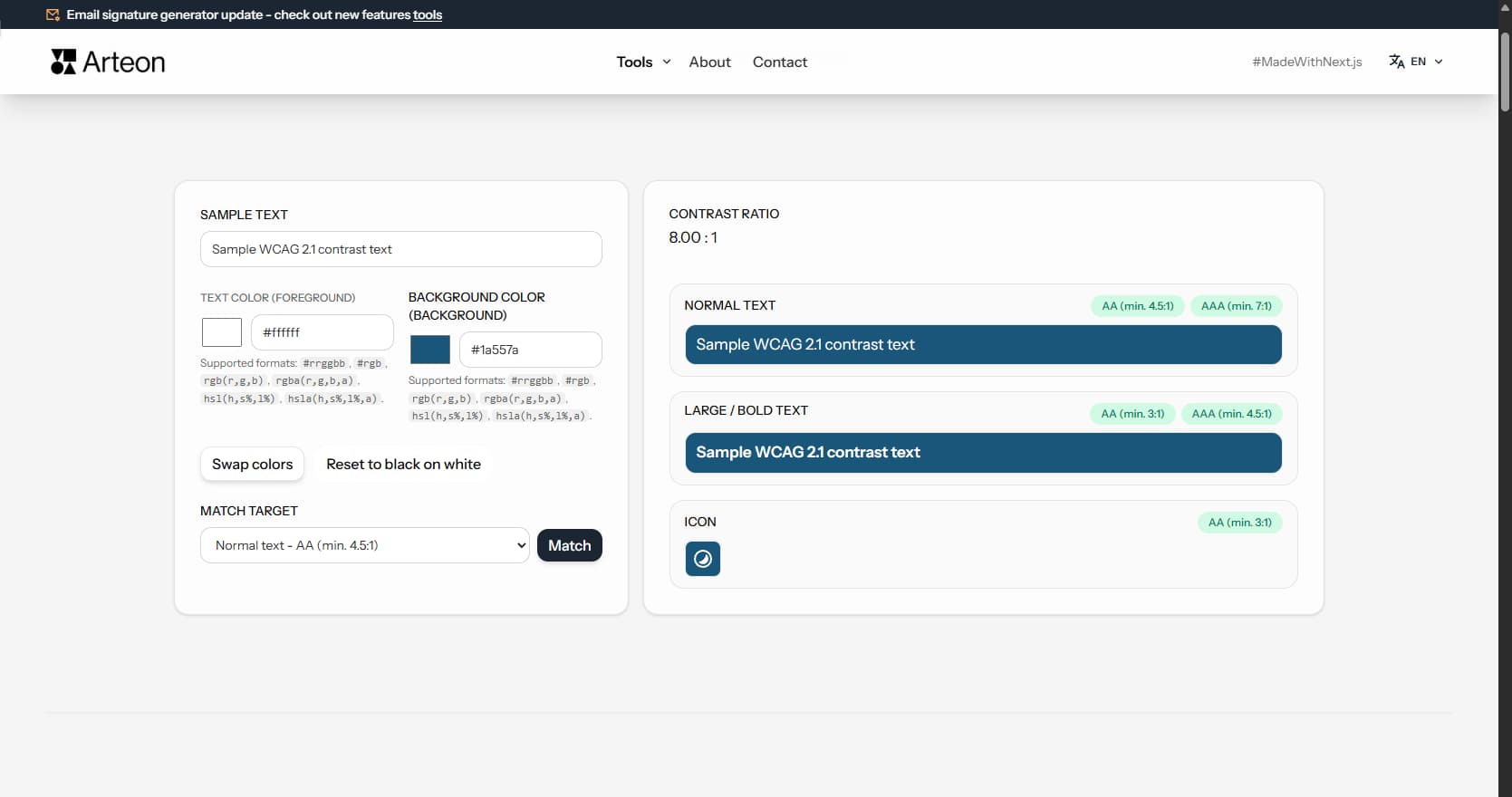
Check text and background contrast per WCAG 2.1 AA and AAA. Automatic color correction.
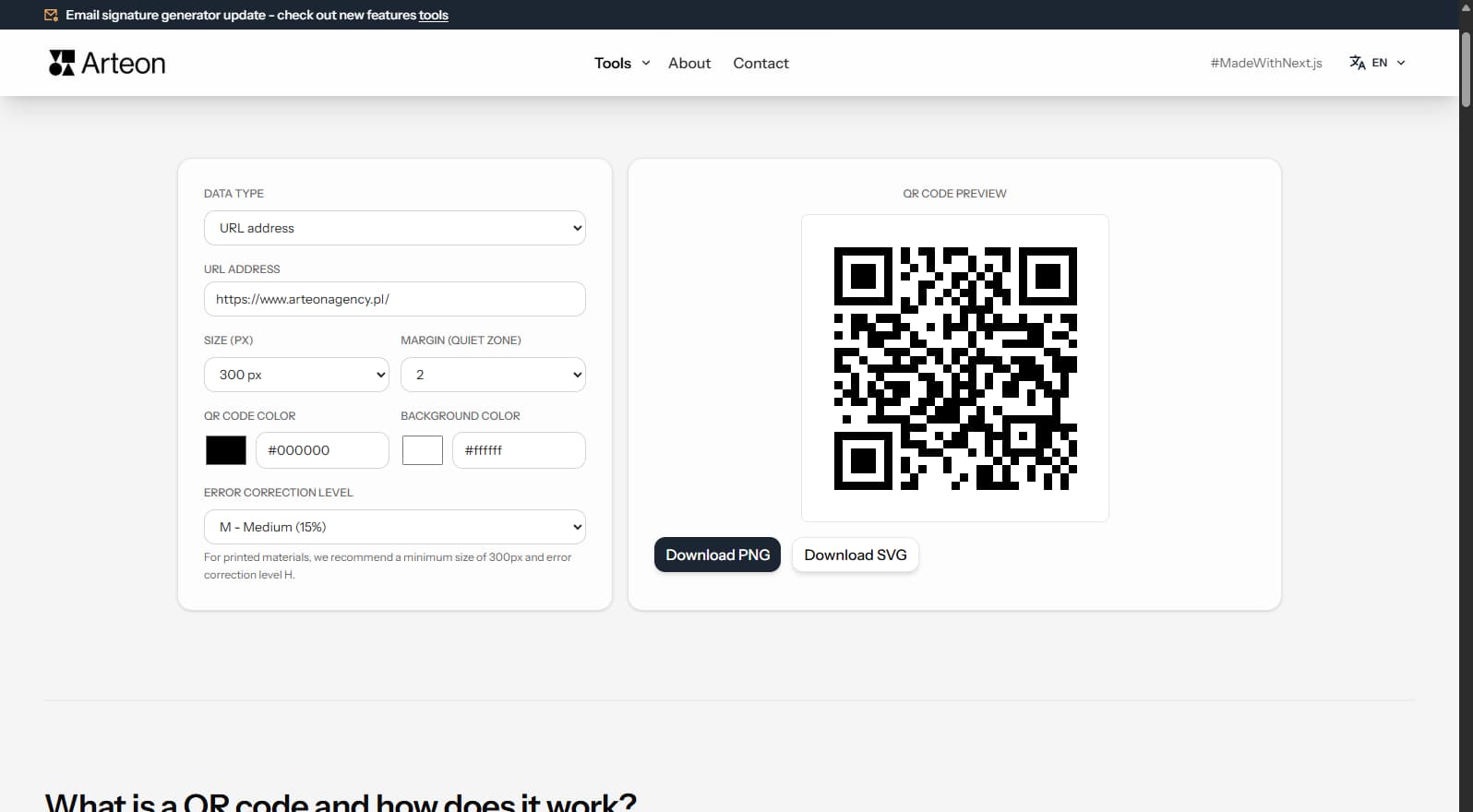
Create a QR code for a website, vCard business card or print. Export PNG and SVG, no registration.
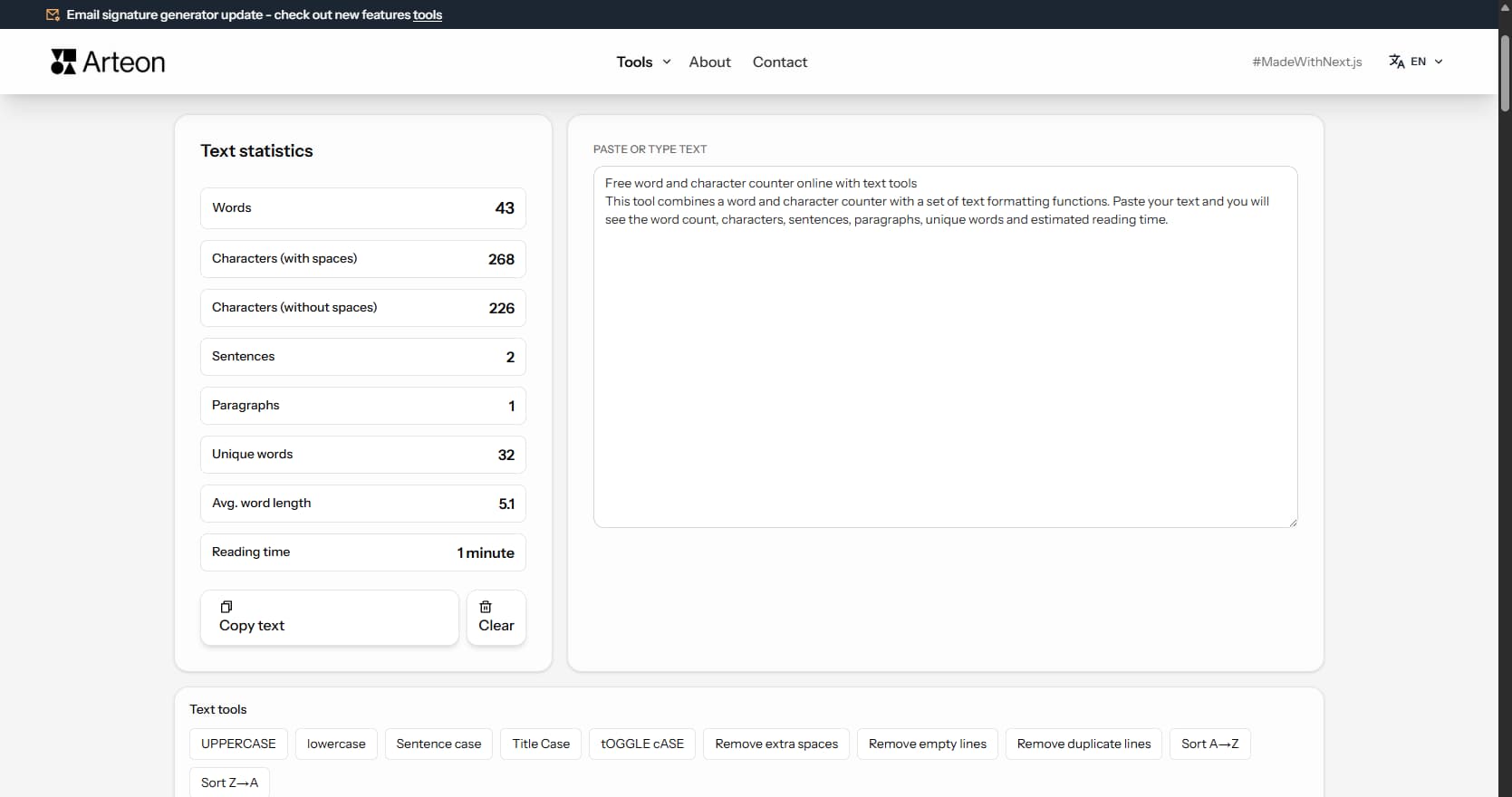
Count words, characters, sentences and reading time. Check readability with the Flesch-Kincaid score.
Original: 3000 x 2000 px
Target: 1080 x 1350 px
Format: WebP