1. Add PNG files
Drag your PNG images onto the upload area or click to select them from your device. There is no limit on the number of files.
Convert PNG images to JPG and shrink their file size. Add files, set quality, and download the results. Everything runs locally in your browser.
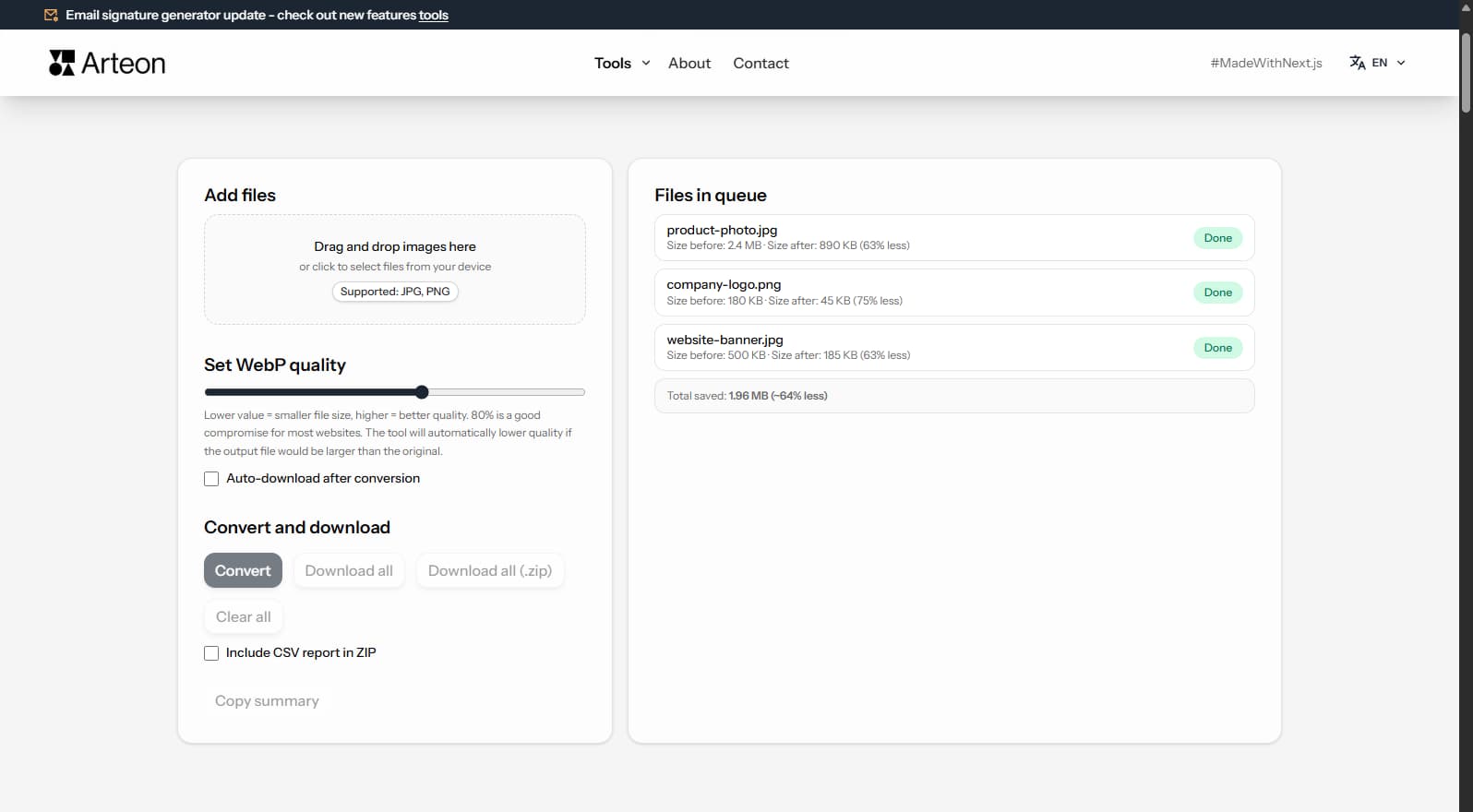
PNG is a lossless format that produces large files — a 3000×2000 pixel screenshot can weigh 5–15 MB. JPG uses lossy compression to create files that are 5–10× smaller with minimal visible quality loss. For photographs and images without transparency, JPG is the more practical format.
JPG is universally supported by every browser, email client, social media platform, and image editor. At quality 85–90, JPG produces visually identical results to PNG for photographic content while being dramatically smaller. Converting PNG screenshots and photos to JPG saves storage and makes files easier to share.
Note that JPG does not support transparency — transparent areas in your PNG will be filled with a solid background color (typically white). If you need transparency, keep your files as PNG or convert to WebP instead.
This converter processes files locally in your browser — nothing is sent to any server. No registration, no limits, no watermarks.
The conversion takes just a few seconds:
PNG-to-JPG conversion is useful in many real-world scenarios:
The ideal JPG quality setting depends on what you plan to do with the image:
This tool defaults to 85%, which covers the vast majority of use cases. You can adjust the slider at any time - even reconvert the same files with a different quality level.
| Feature | PNG | JPG |
|---|---|---|
| Lossy compression | — | ✓ |
| Lossless compression | ✓ | — |
| Transparency (alpha channel) | ✓ | — |
| Animation support | — | — |
| Web browser support | All browsers | All browsers |
| Color depth | 8/16-bit | 8-bit (16.7M) |
| Compact file size | — | ✓ |
| Metadata (EXIF) | — | ✓ |
PNG is lossless and therefore large for photographic content. JPG provides substantial savings:
Photo (PNG)
8.5 MB → 890 KB
Screenshot
1.2 MB → 320 KB
Social media graphic
2.4 MB → 450 KB
Savings are highest for photographs and images with smooth gradients. Graphics with large flat color areas compress less efficiently in JPG.
Core Web Vitals is a set of performance metrics Google uses when evaluating websites. One of them — LCP (Largest Contentful Paint) — measures the time until the largest visible element renders. On image-heavy pages, this is often a hero image or product photo.
Converting PNG photographs to JPG typically reduces file size by 5–10×, directly shortening download time and improving the LCP score. Combined with loading="lazy" and fetchpriority="high", this can significantly improve page performance.
For even smaller files, consider WebP (25–35% smaller than JPG) or AVIF (30–50% smaller). Use PageSpeed Insights to identify specific images worth optimizing.
JPG is a lossy format, so some quality loss is inevitable. At 80–85% quality the difference is virtually invisible to the naked eye. The tool lets you set quality from 60% to 95% so you can find the right balance.
JPG does not support transparency. Transparent areas are replaced with a white background during conversion. If you need to preserve transparency, keep the PNG or convert to WebP instead.
For photographs and screenshots, 80–85% gives a good compromise between size and appearance. For graphics with sharp edges (diagrams, text overlays), try 90–95% to avoid visible compression artefacts.
Savings depend on image content. A 5–10 MB PNG photo converted to JPG at 85% quality typically drops to 0.3–1 MB - a reduction of 80–95%. Screenshots with large flat-colour areas save somewhat less.
Yes. Add as many files as you like - there is no limit. All images are converted in sequence, and you can download them individually or all at once.
No. The entire conversion runs locally in your browser via the Canvas API. Files never leave your device - they are not sent to any server. Data is cleared from memory when you close the page.
Yes, but for the best experience we recommend a laptop or desktop. The converter uses the HTML5 Canvas API, which is supported by all modern browsers including Chrome, Firefox, Safari, and Edge.
Individual files up to 100 MB are supported. There is no limit on the total number of files you can convert in a single session.
Have an idea for a new feature, found a bug, or want to suggest another tool? Drop us a message - we respond within 24 hours.

Resize, crop and convert your image. Ready-made formats for social media, circular avatars, export to JPG/PNG/WebP.

Check title and description length in pixels. Live Google preview and optimization tips.
Convert PNG files to JPG in your browser. No file limits, no signup, no server uploads.

Create a complete favicon.ico set for your website from one image. All required sizes, no login.

Generate 9 palettes from one color: monochromatic, complementary, triadic and more. HEX codes.
Convert WebP files to universally compatible JPG. Works in every app and platform.

Check text and background contrast per WCAG 2.1 AA and AAA. Automatic color correction.

Create a QR code for a website, vCard business card or print. Export PNG and SVG, no registration.

Count words, characters, sentences and reading time. Check readability with the Flesch-Kincaid score.